


DeepL Translate
Translate content with DeepL without leaving Agility: translate fields from the editor sidebar, or translate pages, items and whole lists as you copy them into another locale.
- Translation
Translation that happens where the content lives
Localizing content usually means exporting text, pasting it into a translator and pasting it back. The DeepL app moves that step inside Agility, so editors translate as part of their normal workflow.
What you can do
- DeepL Translate panel: in the content editor sidebar, to translate individual fields on the item you're working on.
- Translate Content on copy: when you make localized copies of pages, content items or whole content lists, translate them as part of the copy.
- Handles custom fields: text, rich text and custom fields that store structured values, including Power Fields' Markdown and Block Editor, are translated.
- Identifiers left alone: values that look like IDs, URLs and slugs are kept as they are.
Who it's for
Teams publishing in more than one locale who'd rather review a draft translation than start from a blank field. It needs at least two locales set up, and a DeepL API key from a DeepL API plan. A Translator subscription doesn't include API access, and DeepL bills translation to your own DeepL account.
An administrator installs it from Settings → Apps. The docs cover getting a key and the install.
Get started
- Get a DeepL API key Sign up for a DeepL API plan and copy your key from the API Keys tab of your DeepL account.
- Install the app As an administrator, open Settings → Apps in Agility, click Install and select DeepL.
- Enter your key Review the details, click Continue, paste your DeepL API key and click Next.
- Finish Click Finish. DeepL now shows under Installed Apps.
- Translate Use the DeepL Translate sidebar on a content item, or choose Translate Content when copying to another locale.
Setting it up
Screenshots
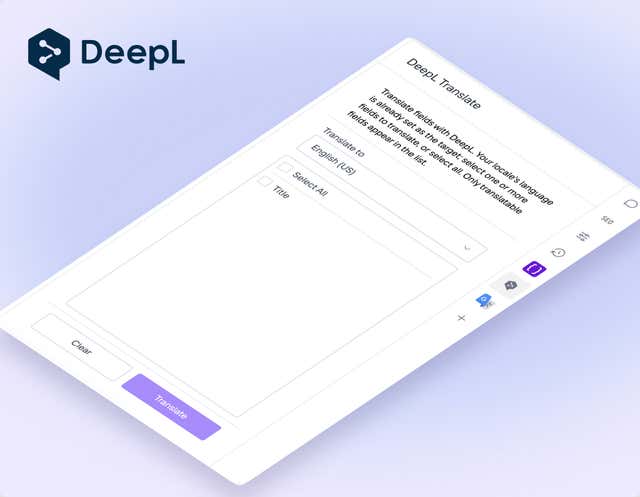
DeepL Screenshot 1
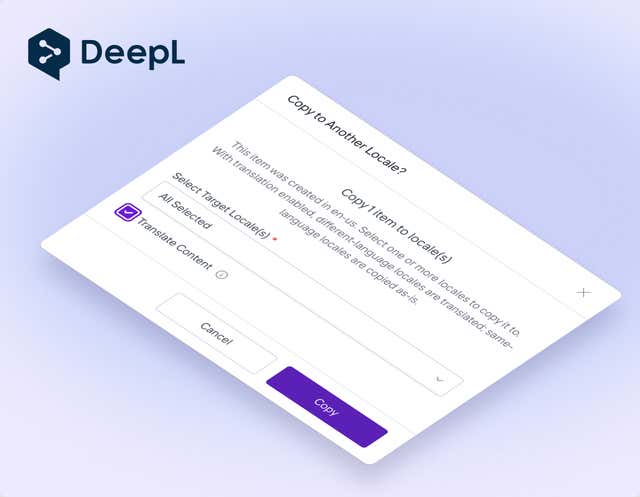
DeepL Screenshot 2