



DeepL Translate
Translate the fields of a content item into your other locales from the Agility sidebar, using DeepL.
- Translation
Integration Overview
The DeepL app adds a panel to the content item sidebar. Pick the fields you want and the locale you're translating into, and DeepL fills them in. It also hooks into the copy-to-another-locale flow, so translating and creating the other language version become one action instead of two.
What is DeepL?
DeepL is a machine translation service with a reputation for reading more naturally than most, particularly across European languages. Teams tend to move to it when a first pass of machine translation keeps coming back needing heavy editing.
Machine translation gets you a draft, not a finished page. Someone who speaks the language still has to read it before it goes live, and we'd rather say that up front than let you find it in production. The app is built on that assumption: the output lands in your other locale as ordinary content you can edit, review and approve.
Why use this integration?
Field by field, or all of them
Only translatable fields appear in the list. Select the ones you want or take the lot, so a small copy fix doesn't mean retranslating a whole page.
Your locales, already mapped
The app reads the locales configured on your instance and matches them to DeepL language codes. There's no second list to keep in sync.
Translate while you copy to a locale
When you copy an item into another locale, the dialog offers to translate it on the way. Locales sharing the same language are copied as they are.
A draft you can edit
Translations land as ordinary content in the target locale, so they go through the same review and approval as anything else you publish.
Steps for Implementation
- 1
Get a DeepL API key
Sign up for the DeepL API and copy your authentication key.
- 2
Add your locales in Agility
The app translates into the locales your instance already has, so add them first under Settings, then Locales.
- 3
Install the app
Go to Settings, then Apps, and install DeepL Translate. Paste in your API key.
- 4
Translate from the sidebar
Open a content item, choose the target locale and the fields, and run it. Progress shows as each field comes back.
Documentation
Setting up the DeepL app
Our own documentation for installing and configuring the app.
DeepL API documentation
Language codes, limits and how the translation API behaves.
Screenshots
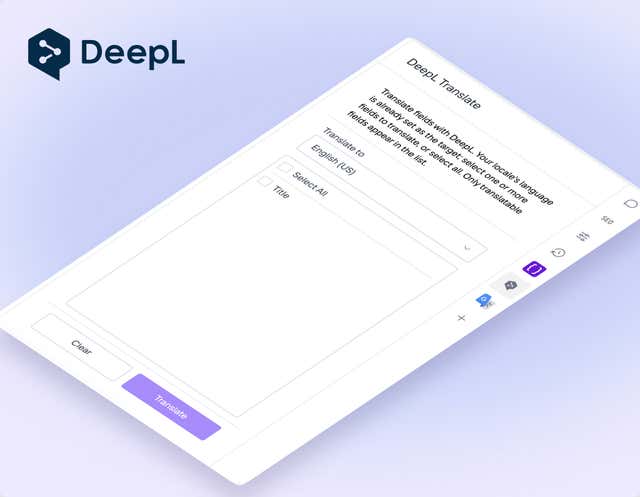
Choosing fields and a target locale in the sidebar
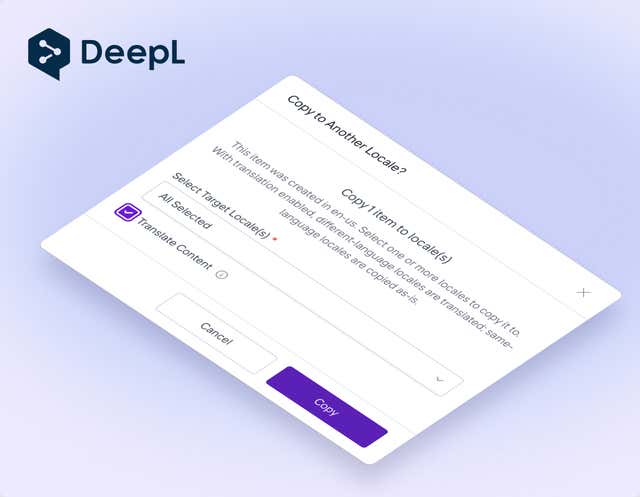
Translating on the way to another locale