


Cloudinary
Browse, search and upload in your Cloudinary media library from inside Agility, then attach an image or video to a content item. Your front end gets Cloudinary's own metadata to deliver and optimize it.
- Digital Asset Management (DAM)
Your Cloudinary library, inside the content form
If your media lives in Cloudinary, editors shouldn't have to leave Agility to find it, download it and upload it again. The Cloudinary app puts the library inside the content form and keeps the link to the original asset.
What you can do
- Image and video fields: attach either one from your Cloudinary media library, with a preview in the field. Videos play inline.
- Cloudinary's own Media Library: search, folders, tags, upload and the transformation editor open inside Agility. An image field only offers images.
- Transformations and quality: choose the transformation, quality and optimized version of the asset.
- Alt text: set it on images. It is written to the asset's Cloudinary metadata and travels with the value to your front end.
- Built for any SDK: the field stores Cloudinary's asset metadata as JSON, so you can hand the public_id straight to a Cloudinary SDK.
Who it's for
Marketing teams who already manage brand imagery and video in Cloudinary, and developers who want delivery and optimization handled by Cloudinary's SDKs instead of a hand-rolled image pipeline.
Setup needs your Cloudinary cloud name and API key (not the secret), and the docs walk through it with rendering examples.
Get started
- Get your Cloudinary details In the Cloudinary console, copy your Cloud Name and API Key from the dashboard. You don't need the API Secret.
- Install the app Open Settings → Apps in Agility, install Cloudinary and enter the Cloud Name and API Key.
- Add the fields In a content or component model, add a custom field and choose Cloudinary Image or Cloudinary Video.
- Pick an asset On a content item, click Browse and choose or upload an asset from your Cloudinary library.
- Render it Parse the JSON field value and give the public_id to your Cloudinary SDK, or use the URL the editor saw.
Setting it up
Screenshots

Image Field
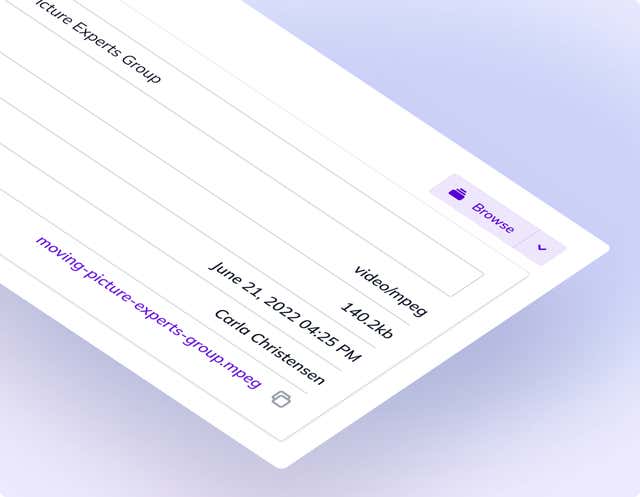
Asset Properties