


Bynder
Browse your Bynder library from inside Agility and attach images and videos to content. Your asset library stays the single source of truth, and editors don't have to leave the content form to find an asset.
- Digital Asset Management (DAM)
One asset library, no re-uploading
When brand assets live in Bynder, every copy that ends up in a CMS is a copy that can go out of date. The Bynder app lets editors pick the asset from the library and attach it to content directly.
What you can do
- Bynder Image and Bynder Video fields: two custom field types for your content and component models.
- Browse and search: open your Bynder library from the field, then upload or choose an existing asset.
- Transformation and quality: choose the transformation, quality and optimized version of the asset.
- Preview: see the selected asset in the field before you save.
- Metadata for your front end: the selected asset's metadata is stored as JSON and returned by the Agility API.
Who it's for
Brand and marketing teams who run Bynder as their digital asset manager, and developers who want content to point at those assets instead of carrying duplicates.
You need your Bynder URL to connect it. The docs cover setup and how to read the field value.
Get started
- Copy your Bynder URL Log in to Bynder and copy the domain of your account URL.
- Install the app Open Settings → Apps in Agility, install Bynder and enter your Bynder URL.
- Add the fields In a content or component model, add a custom field and choose Bynder Image or Bynder Video.
- Choose an asset On a content item, click Choose, then pick or upload an asset in your Bynder library.
- Render it Parse the JSON field value in your front end and output the asset.
Setting it up
Screenshots
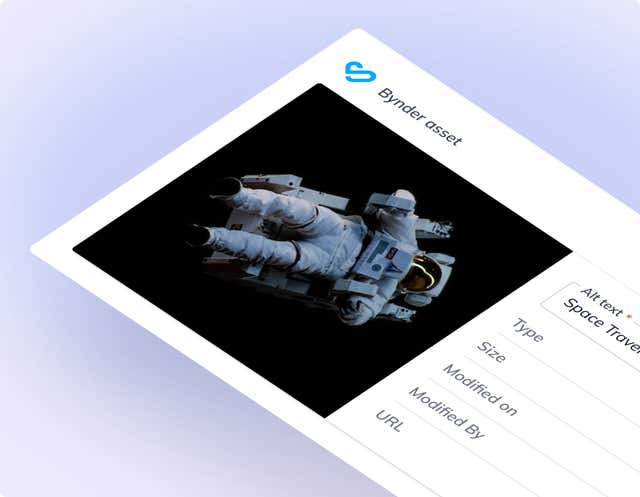
Bynder Screenshot 1
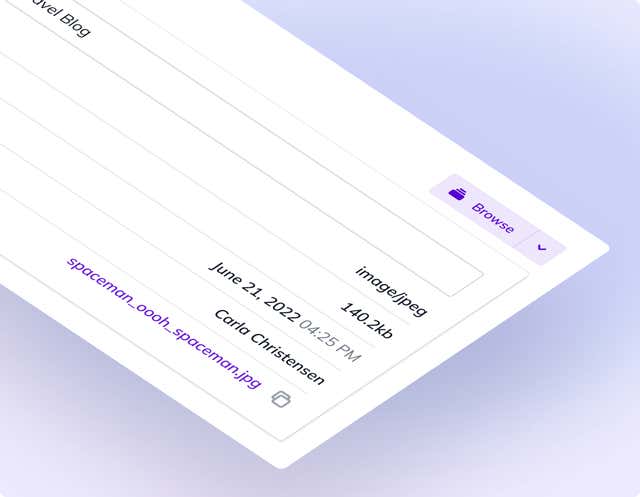
Bynder Screenshot 2