

Decide who can add each component, and where it can go
Component visibility is now available on every Agility instance.

Joel Varty
CTO
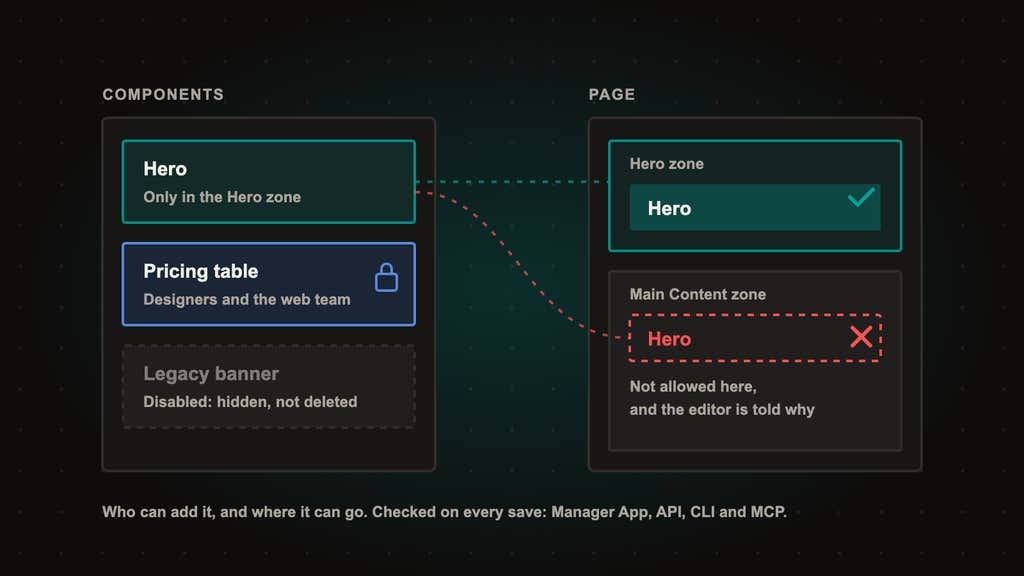
Your content model is a design decision. Until now, the page editor treated every component as fair game in every zone, so keeping a page the way you designed it came down to training and good intentions.
Component visibility is now available on every Agility instance. For each component model, you decide who can add it to a page and where it can go. You can also disable a component without deleting it.
Who can add it
Leave a component open to anyone who can edit the page, or limit it to the people you choose: Designers, Managers, specific users and specific teams. Administrators are always included. A component that only your design team should place stays with your design team.
Where it can go
Pick the sitemaps a component belongs to, and the page models and zones it's allowed in. A hero component goes in the hero zone and nowhere else. A component built for one site stays off the others. These rules apply to everyone, Administrators included, because they describe the page's structure, not who's editing it.
Disable without deleting
Choose Nobody and the component disappears from the component list. Pages that already use it keep rendering and stay editable. That matters when several instances share one set of models: keep the model everywhere, and turn it off where it doesn't apply.
Enforced everywhere a page is saved
Editors see only what the rules allow. The component list shows the components they can add, Choose Zone lists only the allowed zones, and a drop onto the wrong zone is refused with a reason in plain words. The same check runs on the server, so it holds for the Management API, the MCP server, the CLI and your own scripts. An AI agent building pages through MCP gets the same guardrails as a person in the Manager App.
Rules only govern new placements. Nothing already on a page is touched, and nothing changes on your instance until you set a rule.
Get started
Open a component model, choose Visibility in the right-hand rail, and set the rules. The Component Visibility article covers every option, the API endpoints and how syncing works. For editors, Why can't I add a component? explains what a rule looks like from the page editor. The changelog has the full list of what shipped.


