


Secure Files - Azure
Attach private files kept in your own Azure Blob Storage to content, then deliver them to your site or app through time-limited SAS URLs. Editors pick the file, and nothing sensitive needs to be public.
- Digital Asset Management (DAM)
Private files, handed out one time-limited link at a time
Not every file belongs on a public CDN: contracts, price sheets, member downloads. If those already sit in Azure Blob Storage, the Secure Files app lets editors attach them to content without opening up the container.
What you can do
- Secure File field: a custom field for content and component models that attaches a file from your Azure container.
- File selector: editors pick the file from a selector inside Agility.
- Pre-signed delivery: your front end generates a pre-signed SAS URL that gives access to one blob for a limited time.
- Your account, your container: you supply the container name and the storage connection string.
Who it's for
Teams publishing gated or sensitive downloads who already run on Azure, and developers comfortable generating SAS URLs on the server. It's a poor fit if you need public, cacheable assets; use the regular media library for those.
Setup needs a storage account, a container and its keys. The docs include the SAS URL code example.
Get started
- Create a storage account In the Azure portal, create an Azure Blob Storage account.
- Create a container Add the container that will hold your secure files.
- Retrieve access keys Copy the storage connection string and access key from the Azure portal.
- Install and configure Open Settings → Apps in Agility, add Secure Files - Azure and enter the container name and connection string.
- Add the field Add the Secure File custom field to a content or component model, then generate SAS URLs on your server to deliver files.
Screenshots
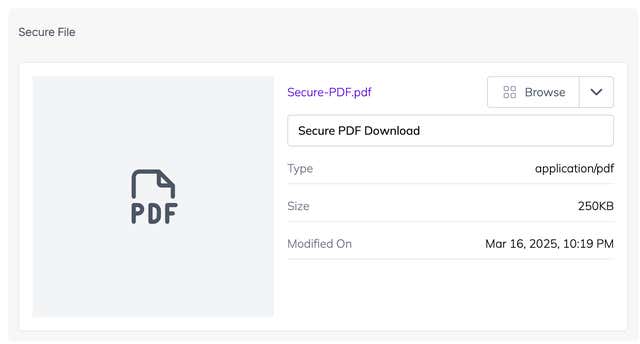
Secure File Field
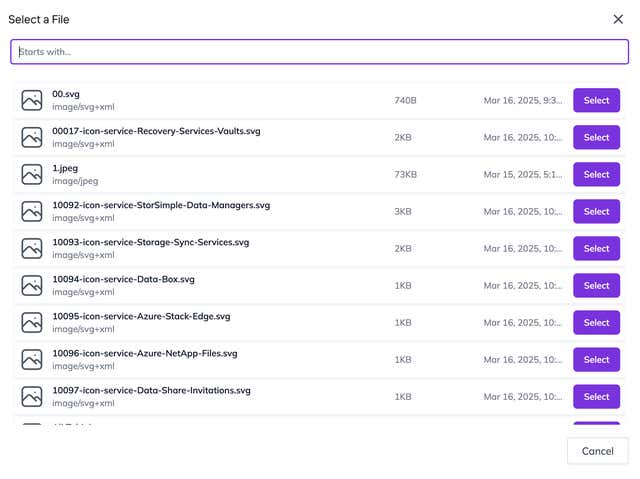
File Selection