


Secure Files - AWS
Attach private files kept in your own AWS S3 bucket to content, then deliver them to your site or app through time-limited pre-signed URLs. Editors pick the file, and nothing sensitive needs to be public.
- Digital Asset Management (DAM)
Private files, handed out one time-limited link at a time
Not every file belongs on a public CDN: contracts, price sheets, member downloads. If those already sit in S3, the Secure Files app lets editors attach them to content without making the bucket public.
What you can do
- Secure File field: a custom field for content and component models that attaches a file from your S3 bucket.
- File selector: editors browse and pick the file from a selector inside Agility.
- Pre-signed delivery: your front end generates a pre-signed URL that gives access to one object for a limited time.
- Your bucket, your keys: you connect your own bucket, access key and region.
Who it's for
Teams publishing gated or sensitive downloads who already use AWS S3, and developers comfortable generating pre-signed URLs on the server. It's a poor fit if you need public, cacheable assets; use the regular media library for those.
Setup takes an S3 bucket and access keys. The docs include the pre-signed URL code example.
Get started
- Create an S3 bucket In AWS, create the bucket that will hold your secure files.
- Retrieve access keys Create or retrieve an AWS access key ID and secret access key for that bucket.
- Install and configure Open Settings → Apps in Agility, add Secure Files - AWS and enter the bucket name, keys and region.
- Add the field Add the Secure File custom field to a content or component model.
- Deliver the file Generate a pre-signed URL for the stored file on your server, using the docs example.
Screenshots
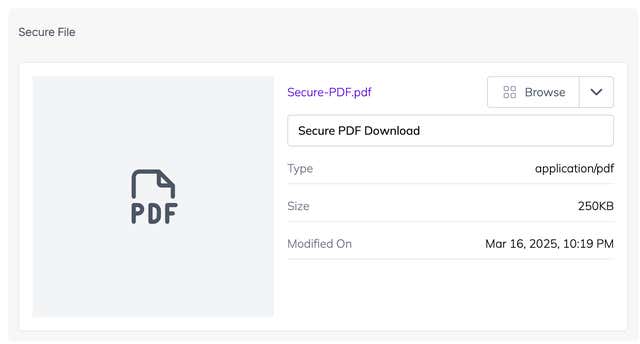
Secure File Field
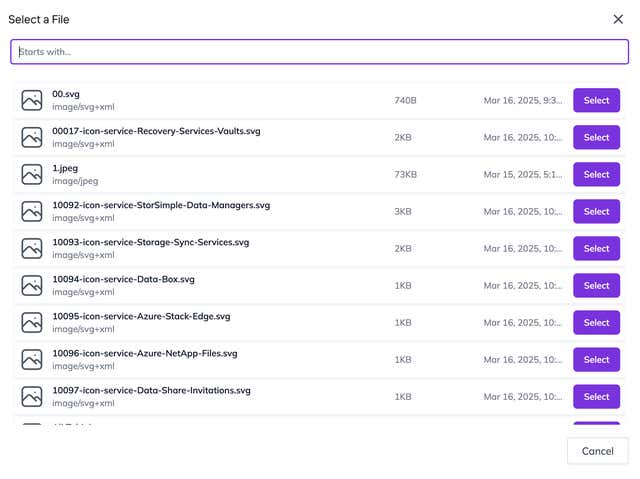
File Selection