
How to Add the Agility MCP Server to Microsoft 365 Copilot
You need a Copilot Studio agent, and here is exactly how to build one

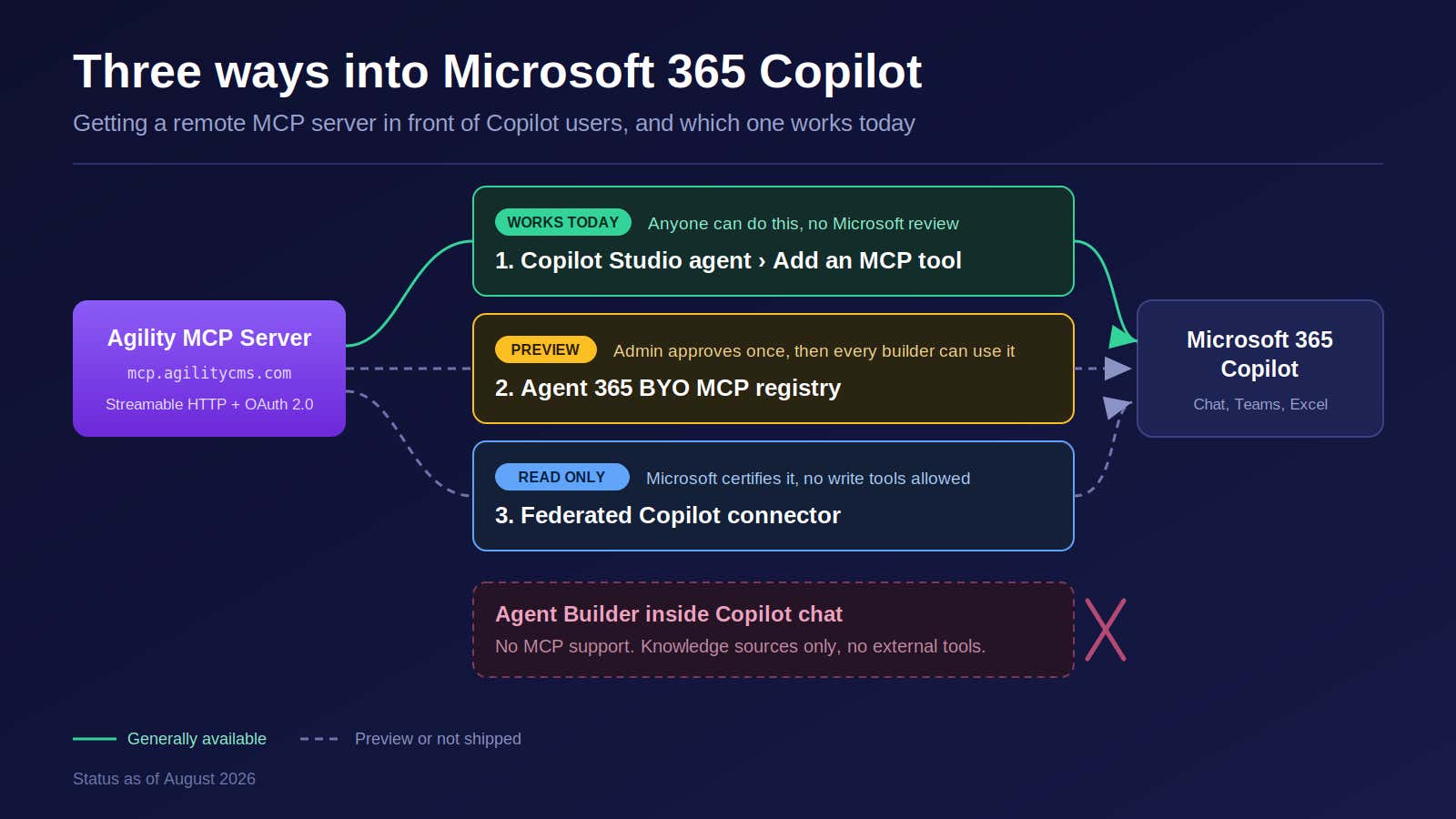
To use the Agility MCP server inside Microsoft 365 Copilot, you build an agent in Microsoft Copilot Studio, add the Agility MCP server to that agent as a tool, and publish the agent to the Microsoft 365 Copilot channel. There is no way to paste an MCP server URL into Copilot chat the way you can in Claude, Cursor or VS Code. As of August 2026, the agent is the container Microsoft requires.
That sounds like more work than it is. The whole thing takes about fifteen minutes, and most of it is Microsoft's approval flow rather than anything to do with Agility. If you want the condensed reference instead of the reasoning, the same setup is documented step by step in Connect the Agility MCP Server to Microsoft 365 Copilot.
Why Microsoft 365 Copilot needs an agent when other MCP clients do not
Every other MCP client treats a server as something you attach to the client. You open settings, paste a URL, sign in, done. Microsoft treats an MCP server as something you attach to an agent, and the agent is the unit that gets named, governed, licensed and shipped to users.
The lightweight Agent Builder inside Copilot chat, the one you reach by clicking "New agent", does not support MCP at all. It handles knowledge sources like SharePoint sites and public websites, and that is it. If you want external tools, Microsoft's own documentation points you to Copilot Studio. So Copilot Studio is where this happens.
The upside of Microsoft's model is real. Because the MCP server is wired into an agent, your IT admin approves it once, Power Platform data policies apply to it, and every tool call is visible to Microsoft Defender. For a bank or a hospital, that is the reason they will say yes.
What you need before you start
- An Agility CMS account with access to the instance you want to work in. Your Agility permissions carry through, so an editor stays an editor.
- Access to Microsoft Copilot Studio. That means a Copilot Studio license in the tenant plus a Copilot Studio User License assigned to you, or a Microsoft 365 Copilot license, which includes Copilot Studio access.
- Copilot Credits available in the environment, through pay-as-you-go or a prepaid capacity pack. Agent runs are billed in credits.
- A Microsoft 365 Copilot license for anyone who will use the finished agent inside Copilot chat.
- A Teams administrator, if you want the agent published to your whole organization rather than just to yourself and a few colleagues.
Step 1: Create the agent in Copilot Studio
Go to copilotstudio.microsoft.com and create a new agent. Give it a name your colleagues will recognize when they type it into Copilot, something like "Agility Content". In the instructions field, tell it what it is for. Something as plain as this works:
You help the marketing team read and update content in Agility CMS. Always confirm which Agility instance the user means before writing anything. Never delete content without explicit confirmation.
Instructions matter more than people expect. The agent has 27 tools available to it once the Agility server is connected, and a sentence of guidance is what keeps it from guessing.
Step 2: Add the Agility MCP server as a tool
Open the Tools page for your agent, then select Add a tool, New tool, and Model Context Protocol. The MCP onboarding wizard opens. Fill in three fields:
- Server name: Agility CMS
- Server description: Read and manage content, pages, models and media in Agility CMS
- Server URL:
https://mcp.agilitycms.com/api/mcp
For authentication, choose OAuth 2.0 and then Dynamic discovery. Do not fill in a client ID or secret. The Agility MCP server publishes OAuth discovery metadata and supports dynamic client registration, so Copilot Studio finds the authorization and token endpoints on its own and registers itself. You should not have to create an app registration anywhere.
Select Create, then Create a new connection, sign in with your Agility account, and select Add to agent.
One detail worth knowing: Copilot Studio only supports the Streamable HTTP transport for MCP. Server-sent events were deprecated in August 2025. The Agility server has been Streamable HTTP since launch, so there is nothing to change.
Step 3: Make sure the agent authorizes as the user, not as you
This is the setting that matters most, and it is the one people miss.
When you connect a tool in Copilot Studio, you sign in to create the connection. That is your connection, tied to your Agility account. Copilot Studio then lets you decide whether every person using the agent authenticates for themselves or simply rides on the connection you created.
Open the Agility CMS tool in your agent, expand Additional details, and find the Authentication setting. It has two values:
- End user. Each person signs in to Agility the first time they use the agent. Every call runs as them. This is the default and it is the one you want.
- Maker-provided. Every call runs as you, the person who built the agent. Nobody is prompted to sign in.
Maker-provided credentials look convenient and they are a bad idea here. If you are an Agility admin and you set the tool to maker-provided, then every Copilot user in your organization inherits your Agility permissions through the agent. A contributor who cannot publish in Agility can publish through Copilot. Someone with access to one instance can reach every instance you can reach. And your Agility audit trail records every one of those changes under your name, so you lose the ability to answer the question "who changed this?"
End user credentials keep the security model intact. Agility already evaluates permissions per user on every Management API call, so leaving this on End user means the agent can never do more than the person asking it. That is the whole point of connecting a CMS to an AI assistant that a hundred people share.
Two related things worth checking while you are in there:
- Do not turn on parameter sharing. On the connection itself, Copilot Studio offers Allow permission to share parameters for on-behalf-of scenarios. Leave it off for Agility. It is another route to users borrowing someone else's access.
- Ask your admin to enforce it. A Power Platform admin can remove the choice entirely. In the Power Platform admin center, under Manage, Environments, then the environment's Settings, Product, Features, there is a Copilot Studio agents section with Control maker credential options. Set it to end-user credentials only and no maker in that environment can build an agent that shares a single identity. The default allows both.
One caveat, so this does not surprise anyone later. Restricting an environment to end-user credentials breaks autonomous and scheduled agents, because there is no signed-in user at three in the morning to consent. If you are running unattended automation against Agility, put it in a different environment and give it a dedicated Agility service account with scoped permissions rather than a person's login.
Step 4: Test it in Copilot Studio before you publish
Use the test pane on the right side of the Copilot Studio editor. Ask the agent something that forces a real tool call, not something it can answer from general knowledge:
- "Which Agility instances can I access?"
- "List the content models in the marketing instance."
- "Show me the last ten blog posts and their workflow state."
If the first call returns your instance list, the connection is live. If it returns an authorization error, the connection was created but not consented to, and the test pane will show a Connect card you need to click through.
Step 5: Publish to Microsoft 365 Copilot
Select Publish at the top of the editor and confirm. Publishing takes a few minutes.
Then select Channels and choose the Teams and Microsoft 365 Copilot tile. Make sure Make agent available in Microsoft 365 Copilot is selected, then select Add channel.
From there you have three ways to get it to people, in increasing order of reach:
- Copy link. Send the installation link to specific colleagues. Fastest, and the right choice for a pilot. It does not work in the Teams mobile app.
- Show to my teammates and shared users. The agent appears under "Built with Power Platform" for anyone you have shared it with.
- Show to everyone in my org. This one goes to Submit for admin approval, and a Teams administrator approves it in the Teams admin center. Once approved it shows up under "Built for your org".
Users then open Microsoft 365 Copilot, type @, pick the agent, and ask their question. With the tool set to end user authentication, the first person to try it sees a Connect card, signs in to Agility, and gets their own connection. Everyone after them does the same. Nobody inherits your credentials, and nobody sees content their Agility account cannot see.
That first Connect card is not a bug to design around. It is the proof that the agent is acting as the person in front of it.
What your team can actually do with it
Once it is live, the agent exposes the full Agility MCP toolset inside Copilot. A content editor who has never opened a terminal can ask for things like:
- "Find every blog post tagged Migration that is still in Staging and list the authors."
- "Create a case study for Northwind in English and French using the same structure as the last one."
- "Which pages on the marketing sitemap have no meta description?"
- "Publish content item 10964."
Publish, unpublish and delete are gated behind confirmation in the Agility server itself, so an agent cannot quietly destroy something on a misread instruction. That behaviour is part of the server, not part of Copilot, so it holds no matter which client is calling.
Two other paths, and why neither replaces this one
I looked hard for a lower-friction route than Copilot Studio, because "create an agent" is a real barrier for a marketing team. Two exist. Neither one replaces the Copilot Studio path today, and the reasons are worth understanding before you pick.
Agent 365 bring-your-own MCP server
Microsoft now lets a developer register an external MCP server through the Agent 365 CLI, after which an AI Admin or Global Admin approves it in the Microsoft 365 admin center under Agents, Tools, Requests. Approve once and the server becomes available across the tenant.
The catch is the support matrix. Approved servers currently work in Copilot Studio, VS Code, Claude Code and the GitHub Copilot CLI. Microsoft 365 declarative agents are listed as not yet supported, and the whole feature is in preview. So it changes who does the registration, not whether you still need an agent. It is worth doing if you plan to use the Agility server across several agents and want central governance from the start.
Federated Copilot connectors, and the read-only rule
A federated Microsoft 365 Copilot connector is a remote MCP server. Microsoft certifies it, a tenant admin approves it, and it then surfaces across Copilot Chat, Excel, Cowork and the Researcher agent without anyone building an agent at all. No Copilot Studio, no channel, no Teams admin approval. Users just turn it on under Sources in Copilot chat.
The constraint is that federated connectors are read-only. Microsoft does not allow write or action tools in one. Every tool has to carry a human-readable title and a readOnlyHint annotation, and the certification review checks that each one is there. A federated connector fetches live data at query time and enforces the source system's permissions. It does not do things.
For Agility, that rule splits the toolset. The read side, listing instances, reading content items and models, pages, sitemaps and media, fits a federated connector. The write side, saving content, publishing, workflow transitions, media uploads and deletes, is out of scope by design. So the two paths are not competing. A federated connector would make your Agility content readable everywhere in Copilot, and a Copilot Studio agent would remain the way anyone actually changes something.
That division is reasonable. Most of the time, someone asking Copilot about the CMS wants to know what is in it, not to edit it mid-sentence in Excel.
The gate on the vendor side is certification. Vendors submit through Partner Center and Microsoft reviews the endpoint, the tool list and annotations, the sample prompts and the documentation before it lands in the connectors gallery. Organizations can also stand up their own connector against an MCP server from the Microsoft 365 admin center, under Copilot, Connectors, without going through Microsoft at all. That is the fast way to try the pattern inside a single tenant, and the same read-only rule applies.
This is the path we are watching most closely at Agility, and it is the one that would put Agility content in front of every Copilot user with no setup. Until then, Copilot Studio is how you get there.
If something does not work
The Model Context Protocol option opens a documentation page instead of a wizard. The MCP onboarding wizard is feature-flagged per tenant and environment. Several people have reported this in 2026, and the fix is a support ticket with your tenant ID, environment ID and region. There is no UI workaround.
Publishing fails with a DLP or blocked connector error. MCP access in Copilot Studio runs on Power Platform connectors, so Power Platform data loss prevention policies apply to it. New custom connectors land in the Non-business group by default, and many tenants block that group. Your Power Platform admin needs to move the connector into an allowed group. Agents cannot be exempted from DLP, so this has to be fixed at the policy level.
Users are not asked to sign in to Agility. The tool is set to maker-provided credentials, so everyone is running as you. Open the tool, expand Additional details, and change Authentication to End user. Then republish.
The tool is there but never fires. Check your agent instructions. If nothing in them mentions Agility, content or the CMS, the orchestrator often will not reach for the tool. Naming the tool explicitly in the instructions fixes most cases.
The docs version of this guide carries a longer troubleshooting section, including what to do when a user can reach more content than their Agility role allows.
Frequently asked questions
Can I add an MCP server to Microsoft 365 Copilot without Copilot Studio?
Not today. The Agent Builder inside Copilot chat supports knowledge sources only, not external tools or MCP servers. Copilot Studio is the supported path, and Microsoft's own documentation redirects you there when you need external integrations.
Can a federated Copilot connector write to Agility?
No. Federated Copilot connectors are read-only by design. Microsoft does not permit write or action tools in one, and every tool must carry a human-readable title and a readOnlyHint annotation. If you want Copilot to create, update, publish or delete Agility content, that runs through a Copilot Studio agent.
What is the Agility MCP server URL for Copilot Studio?
Use https://mcp.agilitycms.com/api/mcp with Streamable HTTP transport and OAuth 2.0 authentication. Select Dynamic discovery in the wizard so Copilot Studio registers itself automatically. Manual OAuth values, for environments where dynamic discovery is unavailable, are listed in the connection reference.
Does every user need their own Agility login?
Yes, and you should keep it that way. In the tool's Additional details, the Authentication setting defaults to End user, so each person signs in and consents individually the first time they invoke the agent, and the agent operates within that person's Agility permissions. Switching it to Maker-provided makes every Copilot user act as the agent's creator, which hands out that person's Agility access to the whole organization and attributes every change to them in the audit trail.
Can an admin stop makers from sharing one Agility login?
Yes. In the Power Platform admin center, open the environment's Settings, then Product, Features, and under Copilot Studio agents set Control maker credential options to end-user credentials only. The default allows both, and the change applies immediately to existing agents in that environment.
What does it cost?
Agent runs consume Copilot Credits, purchased through pay-as-you-go, a prepurchase plan, or prepaid capacity packs. Building the agent needs a Copilot Studio license, and using it inside Microsoft 365 Copilot chat needs a Microsoft 365 Copilot license. The Agility MCP server itself is included with your Agility CMS subscription.
Is the Agility MCP server generally available?
Yes. Version 2.0 is generally available with 27 tools covering discovery, content models, content items, pages, sitemaps and media. You can read more about what the Agility CMS MCP server does and how to install it, see the original MCP server launch announcement, or look at how it fits into a real AI-powered content workflow.

About the Author
Joel is CTO at Agility. His first job, though, is as a father to 2 amazing humans.
Joining Agility in 2005, he has over 20 years of experience in software development and product management. He embraced cloud technology as a groundbreaking concept over a decade ago, and he continues to help customers adopt new technology with hybrid frameworks and the Jamstack. He holds a degree from The University of Guelph in English and Computer Science. He's led Agility CMS to many awards and accolades during his tenure such as being named the Best Cloud CMS by CMS Critic, as a leader on G2.com for Headless CMS, and a leader in Customer Experience on Gartner Peer Insights.
As CTO, Joel oversees the Product team, as well as working closely with the Growth and Customer Success teams. When he's not kicking butt with Agility, Joel coaches high-school football and directs musical theatre.


