What is your developer-dependent CMS actually costing you? Calculate your costs and get a full report


Marketplace Apps
SharePoint Assets
Use private images, videos and documents from SharePoint in Agility content, for intranets and members sections. Files stay in SharePoint, and people only see files they already have access to.
SharePoint Assets lets editors add images, videos and documents from SharePoint to Agility content and rich text. The files stay in SharePoint and aren't copied into Agility's media library. Agility stores a reference to each file, so when someone updates it in SharePoint, your site shows the latest version.
Files in Agility's media library are public. Anyone with the URL can load them from the CDN. Use SharePoint Assets when files need to stay private and they're already in SharePoint, for example on an intranet or in a members section of your website where people sign in with Microsoft. Only people who can open a file in SharePoint can see it on your site. For private files stored outside SharePoint, use Secure Files - Azure or Secure Files - AWS.
At a glance
- Three fields: SharePoint Image, SharePoint Video and SharePoint File.
- Four rich text actions: link a SharePoint file, or insert a SharePoint image, video or file card.
- One picker that searches every SharePoint site the editor can open, and browses site, library and folder.
- Editors sign in with their own Microsoft work account and see only the files they can already open in SharePoint.
- Read-only. The app never changes anything in SharePoint, and there's no secret to store.
- Your website shows each file to signed-in visitors with their own Microsoft account, so SharePoint's permissions still apply there too.
Before you start
You need:
- An Agility instance and permission to install apps (Settings > Apps).
- A Microsoft 365 tenant with SharePoint.
- A Microsoft admin in that tenant (Global Administrator, Privileged Role Administrator, Application Administrator or Cloud Application Administrator) for the one-time approval below.
- For delivery: a website where visitors sign in with Microsoft Entra ID. Files from SharePoint aren't public, so a site with anonymous visitors can't show them.
1. Install the app
- In Agility, go to Settings > Apps and install SharePoint Assets.
- The install screen lets you set these optional settings, then Finish install:
| Setting | What it does |
|---|---|
| Microsoft Entra tenant ID | Leave it empty and editors sign in with any Microsoft work account, seeing only their own organization's SharePoint. Set it and only that tenant's accounts can sign in |
| Default SharePoint site | A site pinned at the top of the picker's landing page |
| Allowed file types for SharePoint File | A list such as pdf,docx,xlsx,pptx. Applies to the SharePoint File field and the link action. Empty allows any type |
| Entra application (client) ID (Advanced) | Only if your IT team registered its own Entra app instead of approving Agility's |
You can test sign-in from the install screen. If you are a Microsoft admin, you can approve the app for your organization there too.
The rich text actions run inside the editor with the editing user's access. Agility shows this notice when any app with rich text actions is installed.
2. Approve the app for your organization (once, by a Microsoft admin)
Editors can't sign in until a Microsoft admin approves the app for your organization. You only do this once per tenant, and it's done in Microsoft, not in Agility. Get it done before you add the fields for editors.
Send your Microsoft admin this link: https://sharepoint-assets.agilitycms.com/setup
The page explains what they're approving and sends them to Microsoft to accept. Here's what it grants, so they can check it against your policies:
- Publisher: the enterprise app is called Agility CMS SharePoint Assets, and Microsoft shows it as published by the verified publisher Agility Inc.
- Permissions: delegated, read-only Microsoft Graph
Files.Read.AllandSites.Read.All. "Delegated" means the app acts only as the signed-in editor, so each editor sees only what they can already open in SharePoint. - No write access, no access when nobody is signed in, no client secret. The app runs in the editor's browser.
- After approval, your admin can limit who may use it (in Entra: Enterprise applications > Agility CMS SharePoint Assets > Properties > Assignment required) or remove it at any time.
If an editor tries to sign in before approval, the app tells them so and gives them the /setup link to send to their admin.
Approve from the /setup page or the install screen's admin button. Don't rely on the "Consent on behalf of your organization" checkbox Microsoft shows when an admin simply signs in: it's easy to miss, and then only that admin is approved.
3. Add the fields to your models
Add any of these custom fields to a content or component model:
| Field | Picks | Editors see | Editors set |
|---|---|---|---|
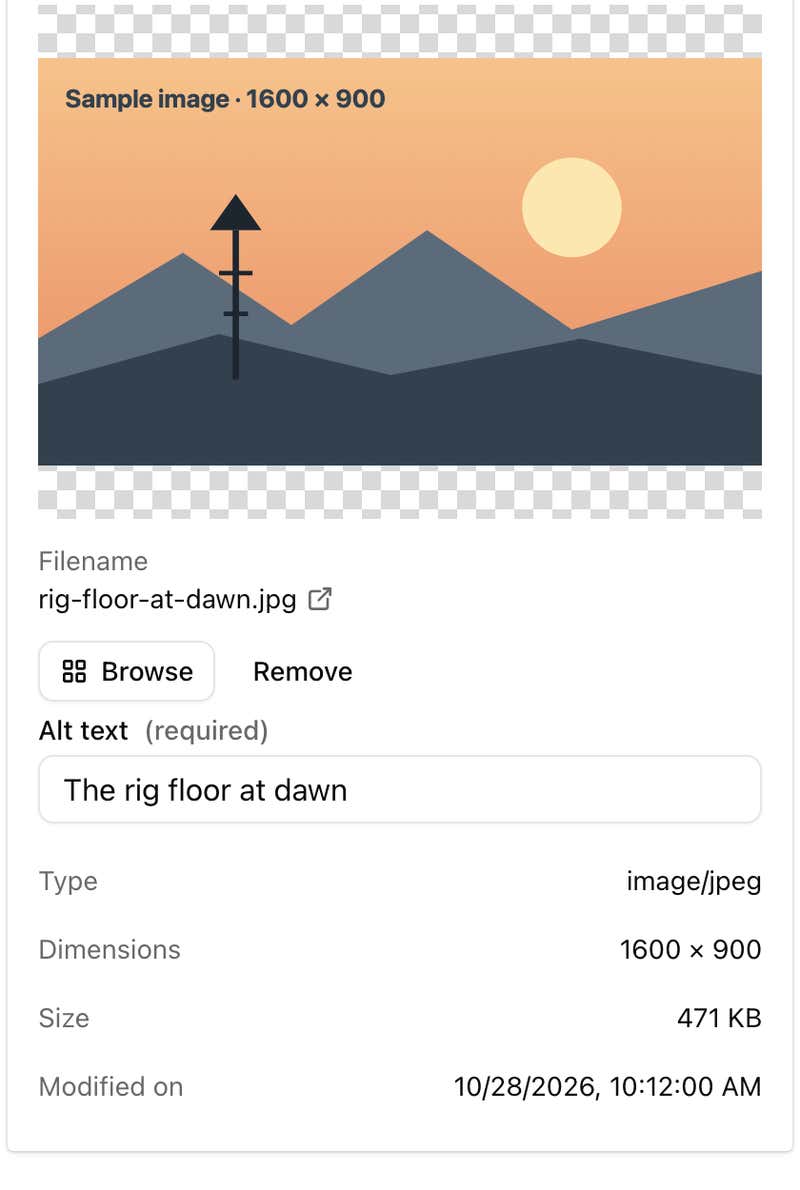
| SharePoint Image | images | the image and its dimensions | Alt text (required) |
| SharePoint Video | videos | a poster that plays in place, and the duration | Title |
| SharePoint File | any file type (or the allowed types) | the first-page thumbnail for Office files and PDFs, else the file-type icon; size and modified date | Link text |
An empty field shows Browse SharePoint. A filled field looks like Agility's own attachment fields: Browse and Remove beside the file name, Replace and Remove when you hover the preview, and an Open in SharePoint link on the file name, which works only for editors who can open the file. If a file has been deleted or the editor can't open it, the field says so.
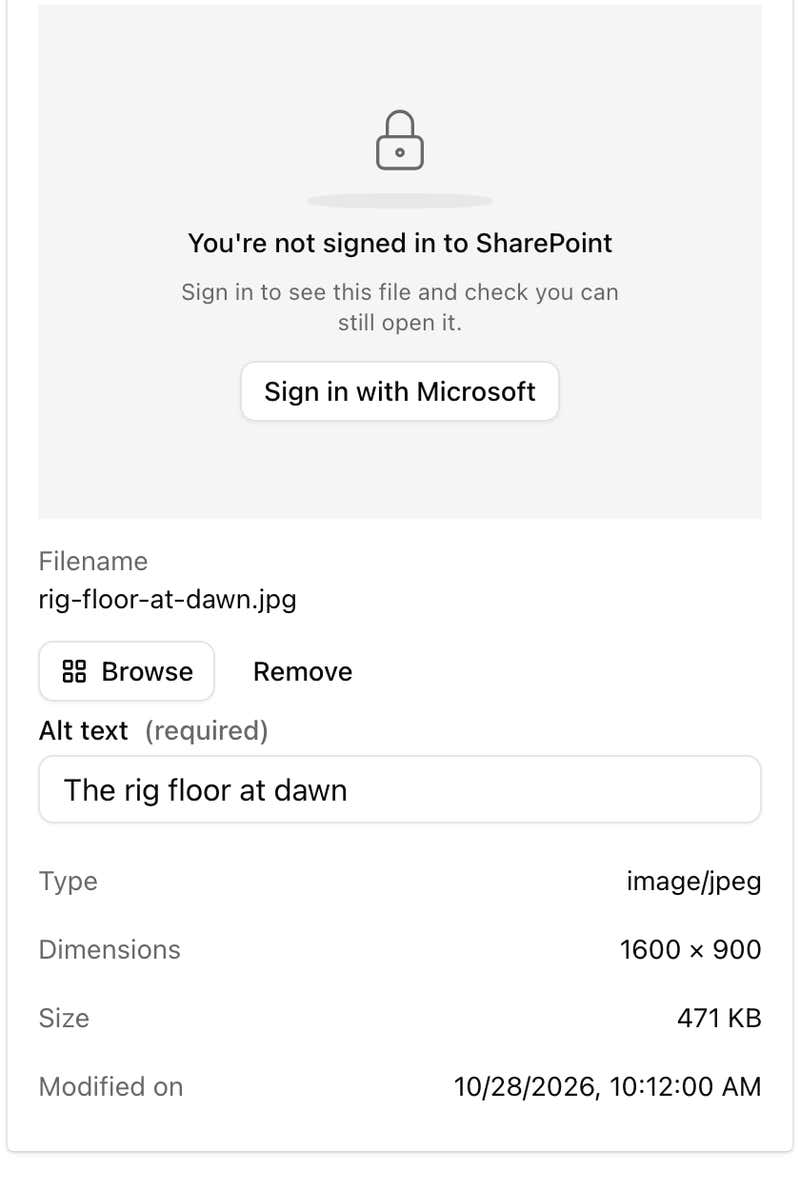
When an editor isn't signed in to SharePoint, the field keeps the saved file and asks them to sign in before it shows the preview:
4. Use SharePoint files in rich text
Once the app is installed, a SharePoint group appears in the rich text toolbar:
| Action | What it inserts |
|---|---|
| Link a SharePoint file | An ordinary link. The selected text stays the link text |
| Insert a SharePoint image | An image, after you add alt text |
| Insert a SharePoint video | A video, after you add a title |
| Insert a SharePoint file | A file card with a thumbnail, name and size |
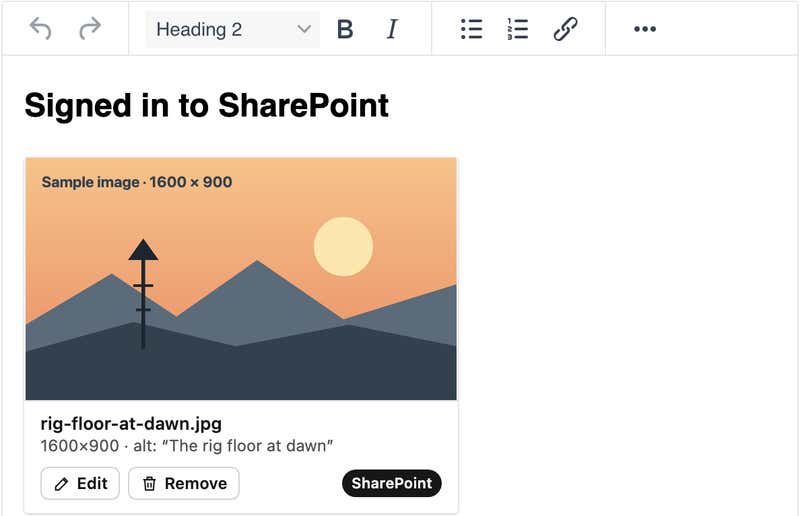
In the editor, images, videos and file cards draw as a card with a preview, a SharePoint badge, and Edit (change the alt text, title or link text, or choose a different file) and Remove buttons.
What Agility stores
Agility stores ids, never SharePoint addresses. A field's value is JSON like this:
{
  "source": "sharepoint",
  "kind": "image",
  "siteId": "contoso.sharepoint.com,<guid>,<guid>",
  "driveId": "b!…",
  "itemId": "01ABC…",
  "name": "site-visit.jpg",
  "mimeType": "image/jpeg",
  "size": 482113,
  "lastModified": "2026-11-03T15:02:11Z",
  "eTag": "\"{…},3\"",
  "width": 1920,
  "height": 1080,
  "durationMs": null,
  "alt": "Crew walking the site at sunrise",
  "title": null,
  "linkText": null
}
Why ids:
- SharePoint download URLs expire within the hour, so a stored URL would stop working.
- A SharePoint address names your internal sites, libraries and folders, and anything in Agility can be read with your instance's Fetch API key. Ids don't reveal that.
- Ids survive a rename or a move; a link wouldn't.
The rich text actions produce:
<a href="/api/sharepoint/{driveId}/{itemId}" data-sharepoint-drive-id="…" data-sharepoint-item-id="…"
   data-sharepoint-kind="file" title="Safety plan.pdf">Safety plan</a>

<sharepoint-image data-agility-value='{"source":"sharepoint","kind":"image","driveId":"…","itemId":"…","alt":"…"}'></sharepoint-image>
<sharepoint-video data-agility-value='{"source":"sharepoint","kind":"video","driveId":"…","itemId":"…","title":"…"}'></sharepoint-video>
<sharepoint-file data-agility-value='{"source":"sharepoint","kind":"file","driveId":"…","itemId":"…","linkText":"…"}'></sharepoint-file>
Show the files on your website
Your site needs a small amount of code to show SharePoint files. It turns each stored reference into the file using the visitor's own Microsoft sign-in, so someone who can't open a file in SharePoint can't get it from your site either.
1. Sign visitors in with Microsoft Entra ID
For example, in Next.js with Auth.js and the Microsoft Entra ID provider, ask for the delegated Files.Read.All scope. You can use your own Entra app registration for the site.
2. Add one route that resolves a reference
GET /api/sharepoint/{driveId}/{itemId}            → 302 to the file's short-lived download URL (supports byte ranges, so video can seek)
GET /api/sharepoint/{driveId}/{itemId}/thumbnail  → 302 to a thumbnail (?size=small | medium | large)
GET /api/sharepoint/{driveId}/{itemId}?open       → 302 to the file in SharePoint
- Check the session first. No session: return
401. - Call Microsoft Graph with the visitor's token:
GET /drives/{driveId}/items/{itemId}for the download URL (@microsoft.graph.downloadUrl) orwebUrl, andGET /drives/{driveId}/items/{itemId}/thumbnailsfor thumbnails. - Don't cache the download URL. It expires.
// app/api/sharepoint/[driveId]/[itemId]/route.ts (Next.js App Router, sketch)
import { auth } from "@/auth"

export async function GET(req: Request, { params }: { params: Promise<{ driveId: string; itemId: string }> }) {
  const session = await auth()
  if (!session?.accessToken) return new Response("Sign in required", { status: 401 })

  const { driveId, itemId } = await params
  const res = await fetch(
    `https://graph.microsoft.com/v1.0/drives/${encodeURIComponent(driveId)}/items/${encodeURIComponent(itemId)}?$select=webUrl,@microsoft.graph.downloadUrl`,
    { headers: { Authorization: `Bearer ${session.accessToken}` }, cache: "no-store" }
  )
  if (res.status === 403 || res.status === 404) return new Response("Not found", { status: 404 })
  if (!res.ok) return new Response("SharePoint error", { status: 502 })

  const item = await res.json()
  const open = new URL(req.url).searchParams.has("open")
  return Response.redirect(open ? item.webUrl : item["@microsoft.graph.downloadUrl"], 302)
}
3. Render fields and rich text
- SharePoint Image:
<img src="/api/sharepoint/{driveId}/{itemId}/thumbnail?size=large" alt="{alt}">, ornext/imagewith a custom loader pointed at the thumbnail route. - SharePoint Video:
<video src="/api/sharepoint/{driveId}/{itemId}" controls title="{title}">. - SharePoint File: the link text, an icon and the size, linking to the route (download) or to the route with
?open(open in SharePoint). - Rich text: links work as they are, because their
hrefalready points at your route. The three elements need a renderer: parse the rich text, readdata-agility-value, and replace each<sharepoint-image>,<sharepoint-video>and<sharepoint-file>with the markup above. Without a renderer they show nothing, so a site that skips this step loses the media rather than exposing it. - Preview and Web Studio: an editor previewing may not be signed in to your site inside the preview frame. Show a placeholder with the file name and type when there's no session.
Limitations
- No upload to SharePoint. Editors pick files that are already in SharePoint. Add or change files in SharePoint itself.
- Always the latest version. The reference points at the file, so your site shows whatever is in SharePoint now. There's no pinning to an older version.
- Some video formats won't play in a browser (for example
.avi,.wmvand most.mkv). The editor shows a poster and a note to open the file in SharePoint. Convert those to.mp4for your site. - No per-field limits yet. You can't yet limit a field to one site, library or folder. It needs per-field settings for custom fields, which Agility doesn't have yet. Every field and the rich text actions open on the editor's own landing page.
- The rich text actions appear in every rich text field once the app is installed.
- Files aren't copied into Agility, so they don't appear in the media library or in Agility's asset reports.
Troubleshooting
| What you see | What to do |
|---|---|
| Editors are told the app needs approval | A Microsoft admin hasn't approved it yet. Send them https://sharepoint-assets.agilitycms.com/setup |
| The sign-in window opens and closes, or nothing happens | Allow pop-ups for the Agility Content Manager, then try again |
| A field says the file wasn't found or you don't have access | The file was deleted, or you can't open it in SharePoint. Ask its owner, or choose another file |
| Images and videos show on your site in preview but not live (or the reverse) | Check that the live site signs visitors in and that your /api/sharepoint route is deployed there |
Related
- SharePoint: patterns for using Agility alongside SharePoint
- Secure Files - Azure and Secure Files - AWS: private files kept outside SharePoint
- Authenticate with Microsoft or Azure AD/Entra
- Microsoft: Grant tenant-wide admin consent to an application
On this page