

Web Studio 101
Class is in session with this introductory look at Web Studio
Jessie Dolman
Marketing Operations Specialist
Summer is just about over, and everyone at Agility CMS hopes that yours was full of sunshine, fun, and relaxation.
September is back-to-school season. For many students (and maybe a few parents, too), the first few days of the new school year focus on refreshing some fundamentals. You know, things like:
- I before E except after C.
- You can divide zero by a number, but you cannot divide a number by zero.
- Your locker combination.
In the spirit of re-remembering the important stuff, consider this your 101 Coles Notes syllabus for Web Studio.
If you haven’t used Web Studio in a while, welcome back. And if you’re new to Web Studio, welcome.
Chapter 1: Meet Web Studio
Web Studio is a visual content editing and previewing tool that’s built right into the Agility CMS headless CMS platform. It shows content teams exactly what their content will look like before it goes live.
In Agility CMS, content is entered via fields or rich text editors (RTEs) within a component. That makes it easy for marketers to create and update content without developer intervention.
But if you want to see what that looks like and still make edits, that’s where Web Studio comes in.
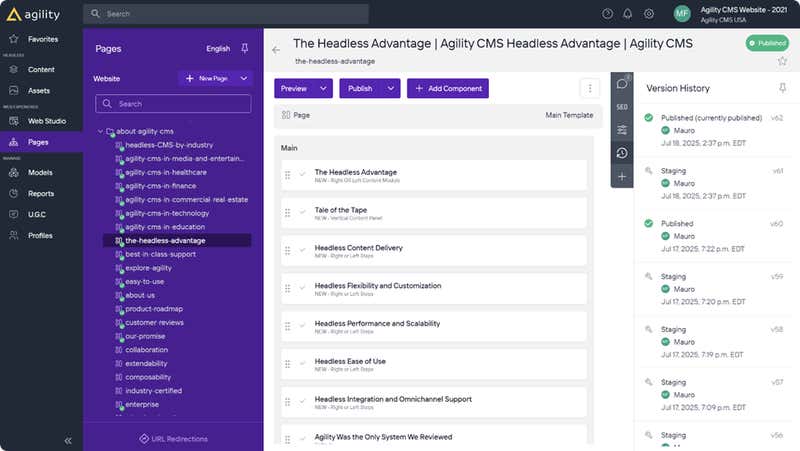
Below is the component view of a webpage called the Headless Advantage. Here, content is managed through fields or rich text editors. Click any component to open it and make edits. Easy.
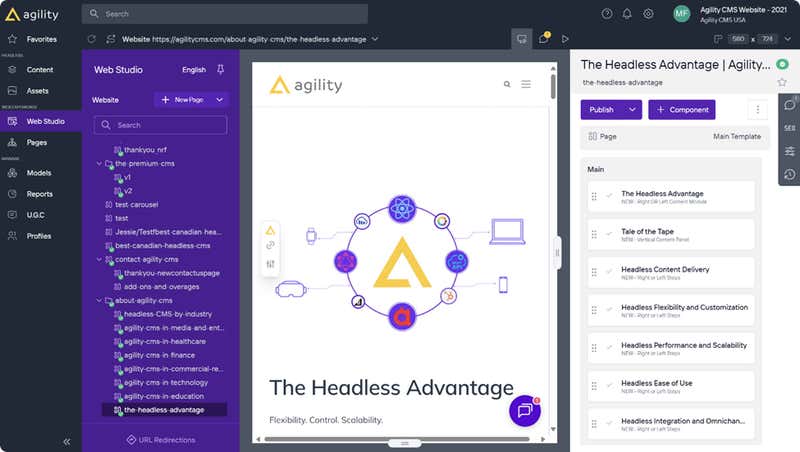
Now this is the Web Studio version of the same page.
The middle shows you what the page will look like once it’s live. The right has the same components, which are listed, clickable, and editable. As you scroll through the page in the middle section, you can click an edit icon that appears in the top right corner of every component to open and edit.
With Web Studio, you can:
Chapter 2: Why Teams Love Web Studio
In addition to the benefits detailed in Chapter 1, here are more reasons to use Web Studio:
Chapter 3: Pro Tips to Work Smarter with Web Studio
The great thing about Web Studio is that it visualizes the website you’re already familiar with. With that in mind, here are some ways you can ace your Web Studio experience.
Explore the Web Studio Layout Before You Start
Select a web page you are very comfortable with and view it in Web Studio. Spend some time clicking around the interface so you can:
- Familiarize yourself with the page preview in the centre.
- Notice the component list on the right.
- Try opening a component and making a small edit, like changing a period to an exclamation mark.
Use Components as Building Blocks
Remember building with blocks in kindergarten? Revisit that mindset as you mix and match and drag and drop components in Web Studio:
- Reuse components across multiple pages.
- Keep your content consistent and scalable.
- Build it how you want it and then copy where you need it to reduce duplicate work.
Preview Early, Preview Often
Check your work. With Web Studio, you can preview content as you go. Make an update, refresh Web Studio, and you’ll see your changes reflected instantly:
- Test different variations of your page before publishing.
- Catch errors or other issues before they go live to your audience.
- View your page in a new tab to get the full end-user experience of what it will look like.
Collaborate with Your Team
It’s like group work in high school, except this time, everybody is contributing. Web Studio makes group projects actually fun:
- Use Draggable Visual Comments to leave comments in the exact spot where they’re referencing.
- Editors and marketers can make changes directly using Web Studio.
- Everyone works in the same space to ensure alignment.
Chapter 4: Experiment Fearlessly
Don’t be afraid to experiment. Web Studio is a safe environment. You won’t “break” Agility CMS, nor will you “accidentally” publish something before it’s ready.
Try things out. See how they look. If you don’t like a certain component, you can delete it without impacting the rest of the page or drag it to a new location. Learn as you go because the best way to master any subject is with practice.
The more you use Web Studio, the more natural it will feel to you. Soon, you’ll be building pages with more speed, confidence, and control than ever.
Key Takeaways
Here’s what to remember from Web Studio 101:
- It’s your visual editing tool inside Agility CMS.
- You can preview, edit, and publish content with confidence.
- Components and layouts keep your work organized and reusable.
- Collaboration is smooth, so you don’t need to worry about messy group projects.
Next Steps: Your Web Studio Study Session
Ready to level up?
Get a demo and we’ll walk you through step-by-step. Or try Agility CMS and Web Studio FREE for 30 days.
Explore it for yourself and you’ll be a Web Studio master in no time.


