

How to Tell What CMS a Website Uses
Learn how to tell what CMS a website uses with online CMS detectors, browser extensions, manual checks, and CLI tools. Updated for 2026.

Bryna Dilman
Director of Marketing

If you're a content marketer, a developer, or a business executive, a CMS detector can help you quickly understand what content management system (CMS) a website uses and get a clearer picture of its tech stack.
This guide shows how to tell what CMS a website uses in 2026. You'll learn about the best online CMS detector options, browser extensions, manual checks, and CMS detection tools for developers.
Why Knowing a Website's CMS Still Matters in 2026
-
Competitor research: See how other sites in your industry manage and deliver content.
-
Migration planning: Spot problems before you switch platforms.
-
Security awareness: Avoid vulnerable systems and old versions.
-
Tech stack alignment: Check whether a site uses a headless CMS, a traditional CMS, or a hybrid setup.
1. Online CMS Detector Tools
In 2026, an online CMS detector does more than it used to. Many tools now mix HTML scans, header checks, code-signature matching, and machine learning.
Below are Agility CMS's top picks for 2026.
WhatCMS.org*
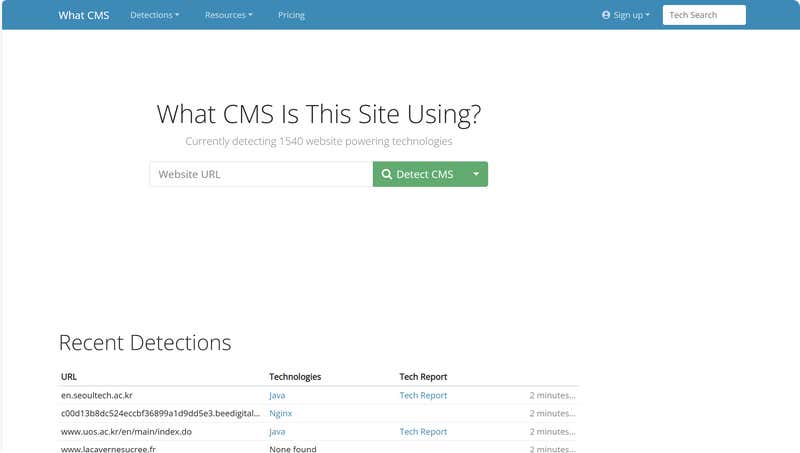
Screenshot: WhatCMS.org
WhatCMS.org is fast, free, and reliable. It detects more than 1,200 CMS platforms, frameworks, and eCommerce platforms. Enter a URL and click Detect CMS to get started.
Stackcrawler
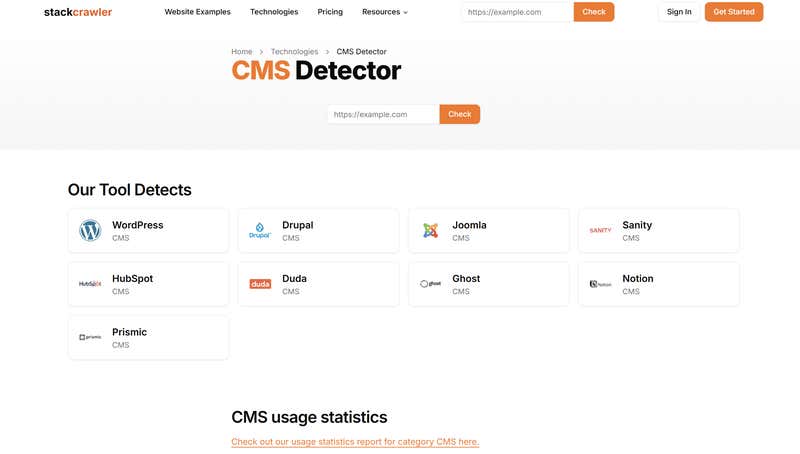
Screenshot: Stackcrawler
Stackcrawler identifies CMS platforms, hosting, analytics, and content delivery network (CDN) details. You may need a free account to use this tool.
Pressable CMS Detector
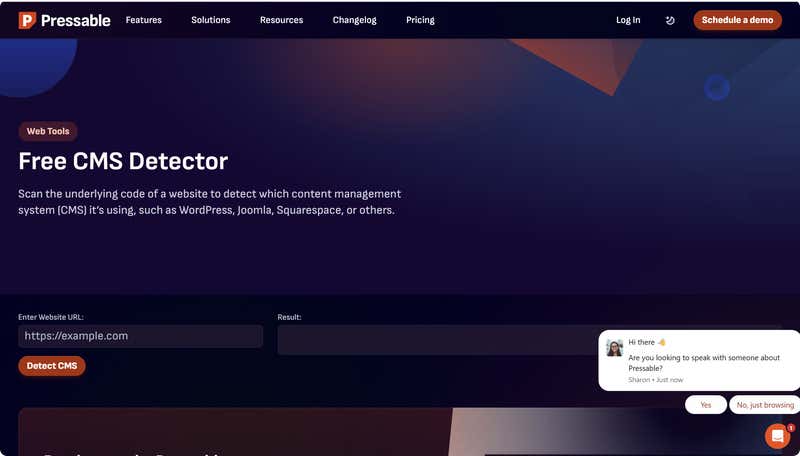
Screenshot: Pressable CMS Detector
Pressable CMS Detector is an easy-to-use free tool. Its main focus is WordPress, but it can identify other CMS platforms.
CMSDetect*
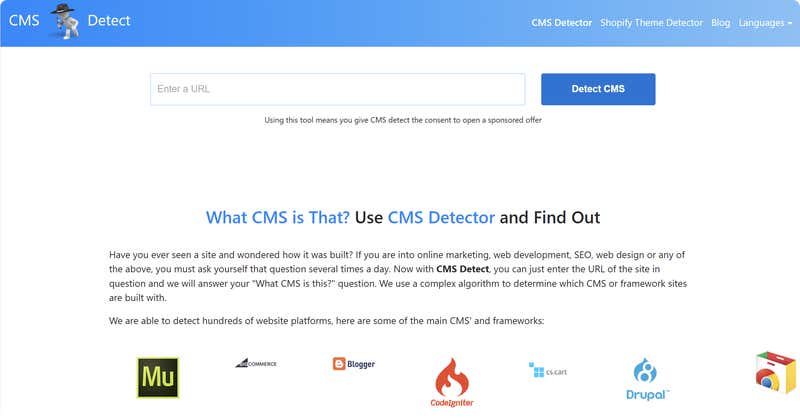
Screenshot: CMSDetect
CMSDetect is very user-friendly. Enter the website you want to check in the input field. It can also show stats on which CMS a website uses, based on all sites that have been checked. That makes it a good at-a-glance view of the most popular CMSs.
SEOCheckr Technology Checker
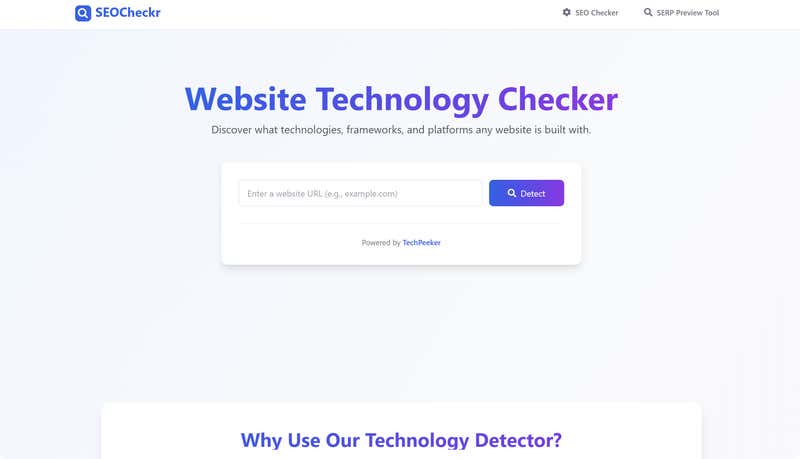
Screenshot: SEOCheckr
SEOCheckr covers CMS platforms, analytics, frameworks, and server details. You can also see which social media channels a site uses. It's a useful tool for marketers and developers.
2. Browser Extensions for Instant Insights
If you check sites often, a browser extension is the fastest option. Instead of copying URLs into tools, click the extension icon while you browse.
Here are two browser extensions to consider:
-
Wappalyzer: This extension identifies the CMS, frameworks, analytics, and payment processors in one click.
-
BuiltWith: Trusted and reliable for tech stack checks. Available for Chrome and Firefox.
3. Manual CMS Detection (Really!)
Old-school manual detection still works in 2026. Here's how:
-
View page source (Ctrl+U / Cmd+Option+U) and search for:
-
meta tags (<meta name='generator' content='WordPress 6.4' />)
-
common directory names (/wp-content/, /sites/all/, /typo3/)
-
- Check admin URLs:
-
-
WordPress: /wp-admin/
-
Drupal: /user/login
-
Joomla: /administrator/
-

Meta generator example
Some websites hide their CMS details on purpose, so manual and automated methods work best together.
4. Command Line Tools for Developers
If you prefer the terminal, here's how CLI CMS detection works:
-
CMSmap -- Detects CMS types and versions.
-
WhatWeb -- A web scanner for CMS platforms, frameworks, and server software.
What is the Best Approach?
-
If you want a quick check, use a browser extension.
-
If you want an in-depth look, try an online tool with more reporting.
-
If you want a security audit, combine CLI tools with manual review.
Final Thoughts on How to Tell What CMS a Website Uses
The basics of CMS detection have not changed much from 2022 to 2026. But today's tools are faster, more accurate, and cover more platforms.
Whether you're doing market research, planning a migration, or checking security, you now have more ways to tell what CMS a website uses and make a better choice.
Q&A
Question: Why does identifying a website's CMS still matter in 2026?
- Short answer: It supports competitor research, migration planning, security, and tech stack alignment. Knowing the CMS helps you see how peers manage content, spot problems before a switch, avoid risky systems or old versions, and tell whether a site uses a headless, traditional, or hybrid CMS.
Question: What's the quickest way to check a site's CMS while I browse?
- Short answer: Use a browser extension. Wappalyzer and BuiltWith show the CMS, frameworks, analytics, and other stack details in one click, so you do not need to copy URLs into web tools. They're best for fast spot-checks while you browse.
Question: Which online CMS detectors are recommended in 2026, and how do they differ?
- Short answer: Several solid online CMS detector tools stand out:
- WhatCMS.org: Fast, free, and reliable; detects 1,200+ CMSs, frameworks, and eCommerce platforms
- Stackcrawler: Identifies CMS plus hosting, analytics, and CDN data; may require a free account.
- Pressable CMS Detector: Simple tool with a main focus on WordPress, but it can identify others.
- CMSDetect: Very user-friendly and also shows popularity stats based on sites checked.
- SEOCheckr Technology Checker: Covers CMS, analytics, frameworks, server details, and social profiles. Useful for marketers and developers.
- Modern CMS detection tools also mix HTML scans, header checks, code signatures, and machine learning for better accuracy.
Question: How can I manually confirm the CMS, and what signs should I look for?
- Short answer: Check the page source and common paths:
- View Source and search for meta tags (<meta name='generator' content='WordPress 6.4' />).
- Look for telltale directories like /wp-content/, /sites/all/, or /typo3/.
- Try admin URLs such as /wp-admin/ (WordPress), /user/login (Drupal), or /administrator/ (Joomla).
- Because some sites hide these clues, manual checks often work best when combined with automated tools.
Question: What should I do if a site hides its CMS or I need a security-focused audit?
- Short answer: Combine methods and use developer tools. Pair manual review with CLI tools like CMSmap (detects CMS types and versions) and WhatWeb (scans CMS platforms, frameworks, and server software). For more context, especially with headless or hybrid setups, add an online CMS detector or browser extension that can surface frameworks, CDNs, and analytics. This layered approach improves detection and supports a stronger security review.


