# Using the GEO Tab
> Source: https://agilitycms.com/docs/editors/using-the-geo-tab
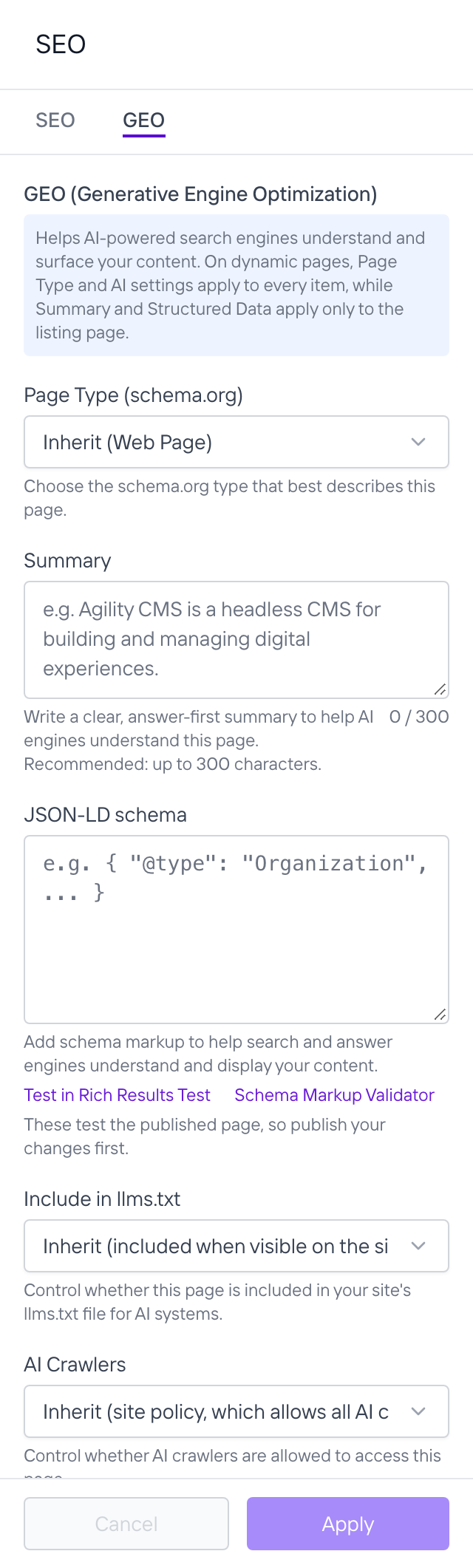
Search engines and AI assistants such as ChatGPT, Perplexity and Google's AI Overviews understand a page better when the page describes itself in a standard format called **structured data** (JSON-LD). The **GEO** tab on pages and content items is where you control that description. GEO stands for generative engine optimization.
## Where to find it
- **On a page:** open the page and select **SEO** in the right-hand sidebar. The panel has two tabs, **SEO** and **GEO**. Select **GEO**.
- **On a content item:** the tab is on items in a list that a dynamic page uses (blog posts, products, events). Open the item, select **SEO** in the right-hand sidebar, then **GEO**. Items in other lists don't have an SEO panel.
Make your changes, then select **Apply** at the bottom of the panel to save them.
 ## How it works
**Agility doesn't generate structured data. Your website does, each time it shows the page.** Agility stores what you enter and sends it to your site along with the page's content. Your site then builds the structured data from several places:
- **Your site settings**: the organization's name, logo and social profiles, shared by every page.
- **This tab**: the page type, the summary, and any JSON-LD you add.
- **The content itself**: for example, a blog post's title, image, publish date and author, or the questions in an FAQ component on the page.
- **The sitemap**, which gives every page a breadcrumb trail.
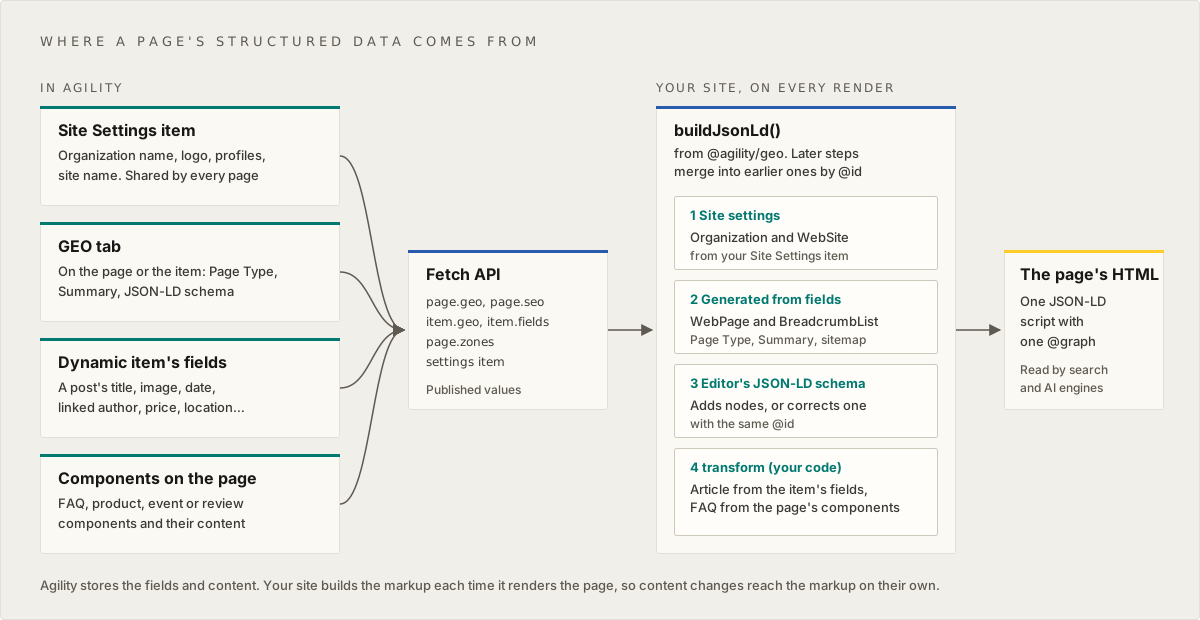
So most pages need very little on this tab. Which content your site turns into structured data depends on how your site was built. **Ask your developer what your site builds automatically**, so you don't enter it twice.
## The fields
| Field | What it's for |
|---|---|
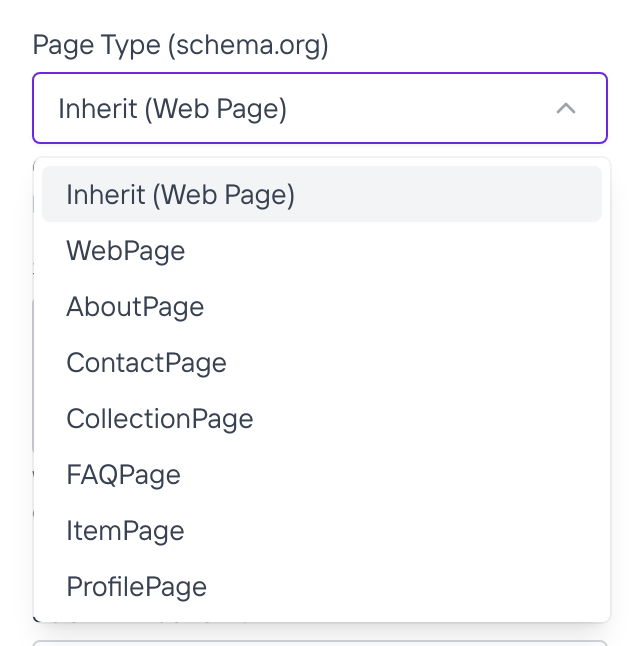
| **Page Type (schema.org)** | What kind of page this is: **WebPage**, **AboutPage**, **ContactPage**, **CollectionPage** (a listing), **FAQPage**, **ItemPage** or **ProfilePage**. Search and AI engines use it to understand the page. Leave it on **Inherit (Web Page)** unless the page is clearly one of the others |
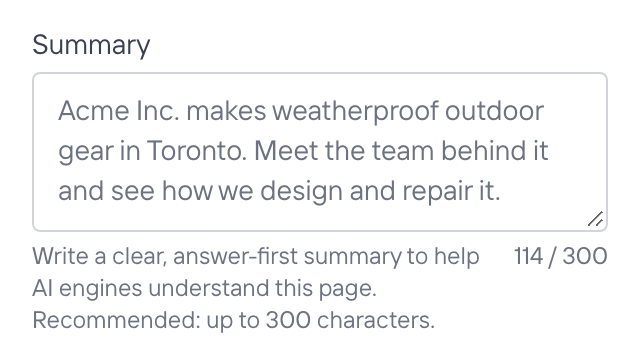
| **Summary** | A short, plain-text answer to the question this page answers, written first and to the point. AI engines can quote it. It's also used as the page's description when there's no meta description. The counter suggests up to 300 characters; the limit is 2,000 |
| **JSON-LD schema** | Extra structured data that your site can't work out from the content. Your site merges it with what it builds. It's checked as you type: **Valid JSON** shows when it parses, and **Format** tidies it |
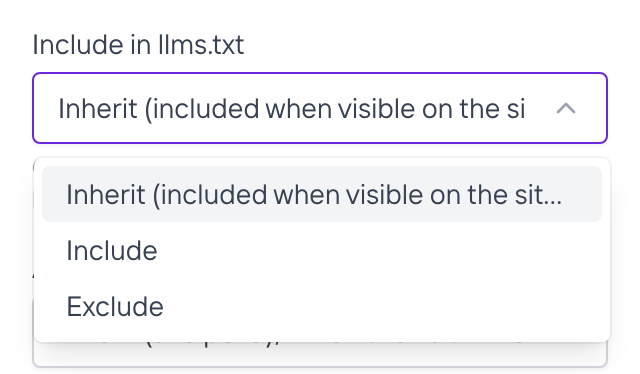
| **Include in llms.txt** | Whether this page should be listed in your site's `llms.txt`, a file some AI tools read to find a site's key pages. **Inherit** lists it when it's visible on the sitemap; you can also choose **Include** or **Exclude** |
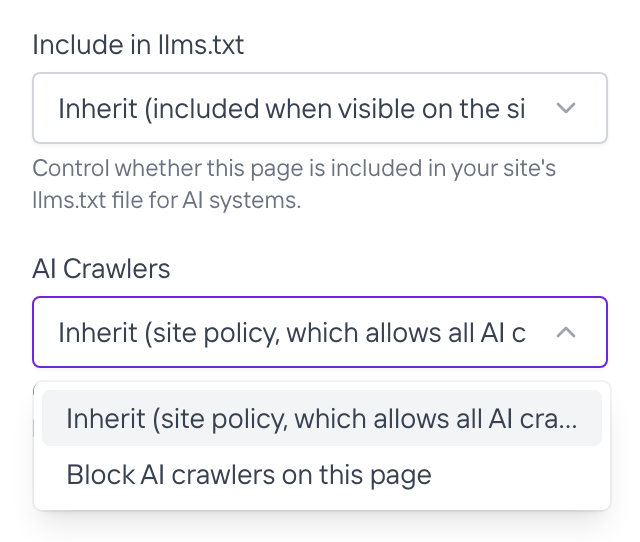
| **AI Crawlers** | Whether AI crawlers may read this page: **Inherit**, or **Block AI crawlers on this page** |
 ### What to put in JSON-LD schema
Use it for facts that aren't in any field, such as an award, a link to a person's profile elsewhere, or a special offer on one page.
**Don't** retype what's already in the content, such as a headline, a price or a date. When the content changes, what you pasted won't, and search and AI engines will see two different answers. If something you need isn't being built from your content, ask your developer to add it to the site instead.
To correct something your site generates, use the same `@id` as the generated item, and your value replaces it. Your developer can tell you the `@id`s your site uses.
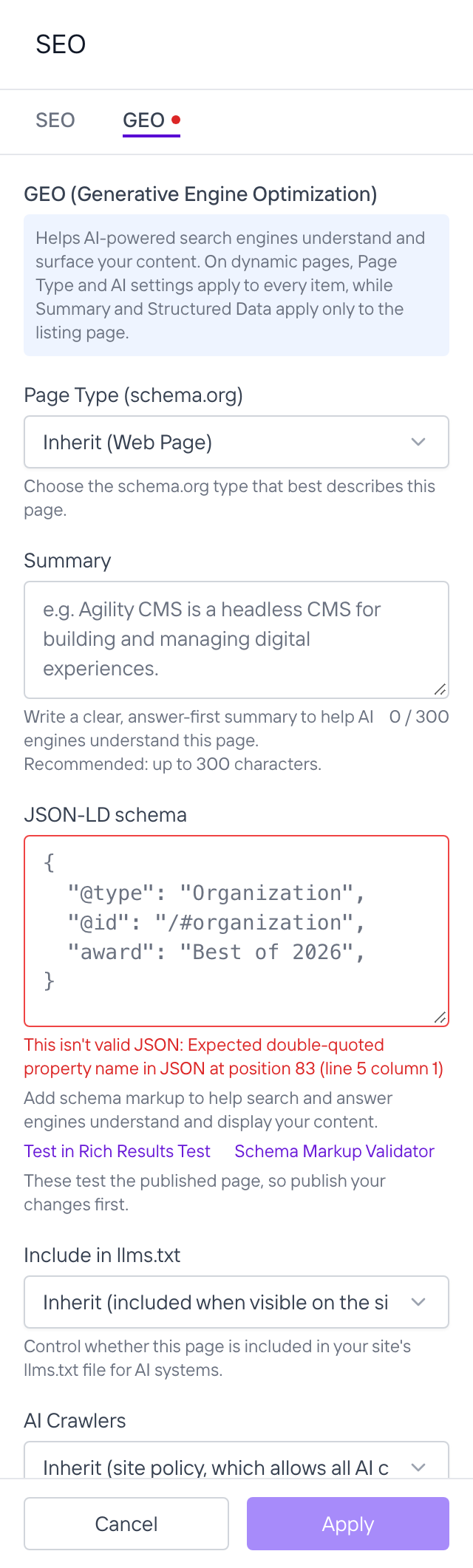
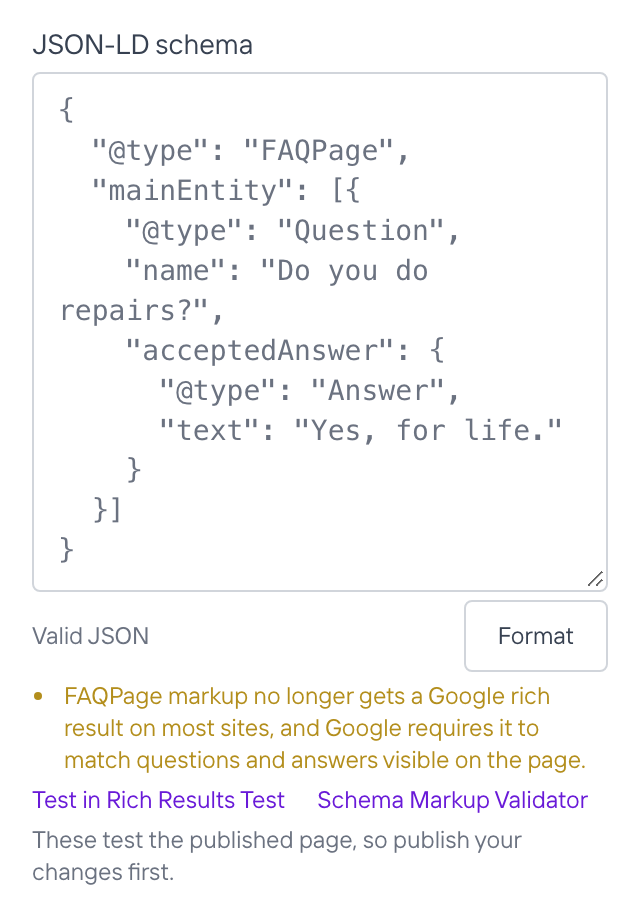
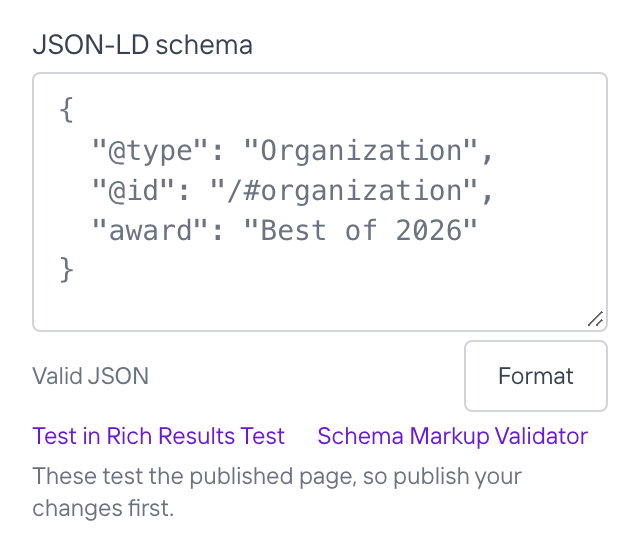 If the JSON doesn't parse, the field shows what's wrong, the **GEO** tab shows an error marker, and **Apply** stays disabled until you fix it. The field also warns about common mistakes without stopping you from saving, such as a misspelled type, or **FAQPage** markup, which Google now shows as a rich result on very few sites.
 ## Dynamic pages and their items
A dynamic page, such as a blog post page, shows one content item at a time. Both the dynamic page and each item have a **GEO** tab:
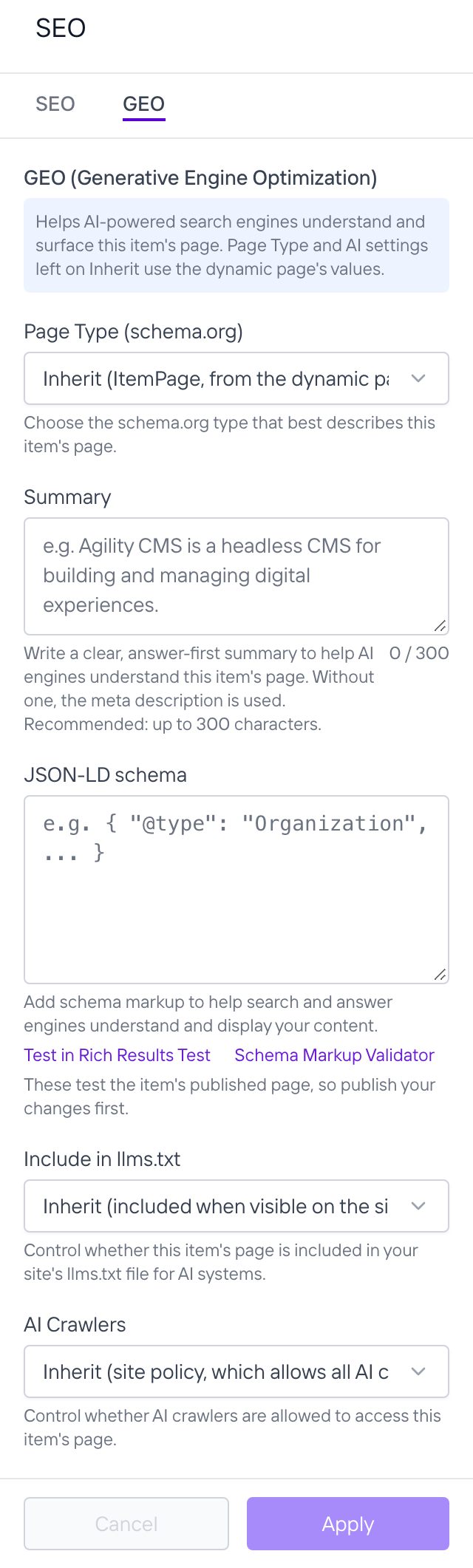
- **Page Type**, **AI Crawlers** and **Include in llms.txt** on the dynamic page are the defaults for every item. On an item, leave them on **Inherit** to use the dynamic page's value. When you open the item from the dynamic page, the option says what it inherits, for example *Inherit (ItemPage, from the dynamic page)*. Change it on the item to override it for that item only.
- **Summary** and **JSON-LD schema** are never inherited. Each item has its own, so every post doesn't carry the same summary. An item with no summary is described by its meta description.
 ## When changes show up
1. **Apply**: your changes are saved in Staging, and your preview site shows them.
2. **Publish**: your changes go live in Agility.
3. **Your website updates** the next time it rebuilds or refreshes the page. Depending on how your site is set up, that's within a few minutes or at its next build.
4. **Search and AI engines see the change** the next time they visit the page, which can take days.
Everything your site builds from your content updates the same way, without you editing any structured data.
## Checking the result
Agility checks that what you typed in **JSON-LD schema** is valid JSON and flags common mistakes, but it doesn't show the final structured data your site builds. To see it, use the two links under the field, **Test in Rich Results Test** and **Schema Markup Validator**. They open Google's and schema.org's checkers on the page's URL:
- When the page is published, they test the live page, so **publish your changes first**.
- Before that, they test its preview URL, so **apply your changes first**.
The links only appear when Agility knows the page's URL.
## The AI settings
**Include in llms.txt** and **AI Crawlers** are saved with the page, but **they only take effect once your website reads them** when it creates its `robots.txt` and `llms.txt` files. Ask your developer whether your site does. Until it does, changing them doesn't block or list anything.
 ## JSON-LD schema or Additional Header Markup?
Use **JSON-LD schema**. It's checked when you apply and combined with everything else your site builds. Structured data in **Additional Header Markup** (on the **SEO** tab) still works, but it's added as a separate block, so the same thing can end up described twice. If you move it, clear it from Additional Header Markup.
## Related
- [Managing SEO for Editors](/docs/editors/manage-seo)
- [Rendering SEO & GEO Metadata on Your Site](/docs/developers/rendering-seo-geo-metadata), for your developer
---
## Related pages
- [Introduction to Pages in Agility CMS: Building and Managing Sitemaps](https://agilitycms.com/docs/editors/introduction-to-pages.md)
- [Managing Pages](https://agilitycms.com/docs/editors/managing-pages.md)
- [Master URL Redirections in Agility CMS: A Complete Editor's Guide](https://agilitycms.com/docs/editors/url-redirections.md)
- [Testing URL Redirections](https://agilitycms.com/docs/editors/how-to-test-url-redirections.md)
- [Managing SEO for Editors](https://agilitycms.com/docs/editors/manage-seo.md)
- [Publish Multiple Pages](https://agilitycms.com/docs/editors/publish-multiple-pages.md)
- [Restore a Previous Page Version](https://agilitycms.com/docs/editors/restore-a-previous-page-version.md)
- [Initialize a Page in Another Locale](https://agilitycms.com/docs/editors/initialize-a-page-in-another-locale.md)
- [Add or Remove a Component](https://agilitycms.com/docs/editors/add-or-remove-a-component.md)
- [Components with Content that is shared across your site](https://agilitycms.com/docs/editors/components-with-content-that-is-shared-across-your-site.md)
- [Multi Locale handling with Sitemaps and Pages](https://agilitycms.com/docs/editors/multi-locale-handling-with-sitemaps-and-pages.md)
- [Social Sharing Images](https://agilitycms.com/docs/editors/social-sharing-images.md)
- [Why Can't I Add a Component?](https://agilitycms.com/docs/editors/component-visibility.md)
Index of every docs page: https://agilitycms.com/docs/llms.txt