# Introduction to Assets
> Source: https://agilitycms.com/docs/editors/introduction-to-assets
## What are Assets and how are they handled in Agility?
Agility provides access to a robust asset manager; a central hub where you can store and organize all of your available digital assets.
Assets are deployed from Agility and served over a lightning-fast CDN. The server closest to a user will always be used to serve assets, thereby minimizing latency and improving your site speed and performance.
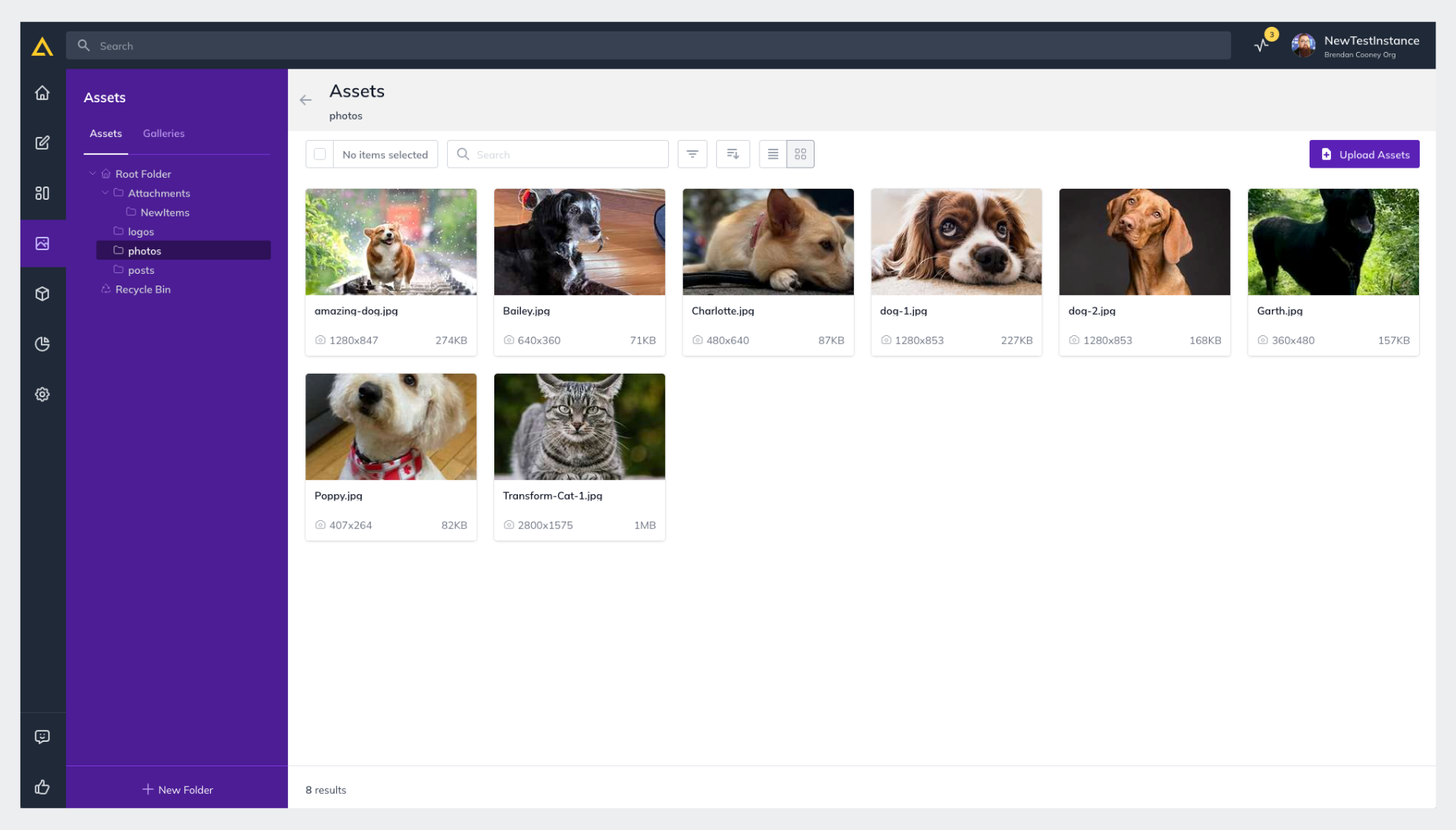
## Accessing your Assets
You Assets Dashboard can be found by opening your Agility Instance and clicking Assets from the main sidebar menu.
**File Types**
| jpg | gif | pdf |
| --- | --- | --- |
| png | webp | mp3 |
| svg | zip | mp4 |
**Upload Size & Large Files**
You can upload files up to 1GB in size.
Files larger than 15MB are delivered using segmented caching over the CDN. This applies to **any** file, not just images: regardless of file type, a file over 15MB must use one of the following extensions in order to be served by the CDN.
| mp4 | mov | webm |
| --- | --- | --- |
| mkv | gif | pdf |
| png | jpg | jpeg |
| wav | mp3 | zip |
| pptx | ppt | apk |
If a file over 15MB uses an extension that is not on this list, it will not be downloadable through the CDN. Files at or under 15MB are not affected by this restriction.
**Organizing Assets**
Assets can be organized into folders which will automatically update the URL path of the Asset.
For example, if you have a file stored in the Products folder of your Assets Dashboard, the file path would be `/products/{fileName} `
## Folder Security
**Folder Security Roles **
There are 3 Levels of Folder Security Access:
- **Contributor – **Users with this access level can view folders in a Read Only state.
- **Editor –** Users can make uploads and changes to media files.
- **Delete –** Same as an Editor but with Delete permissions.
**Managing Folder Security **
To make changes to your Folder Level Security
1. **Select the Folder** you’d like to manage permissions for from the Assets Dashboard
2. Click the **Menu Indicator** next to the folder name
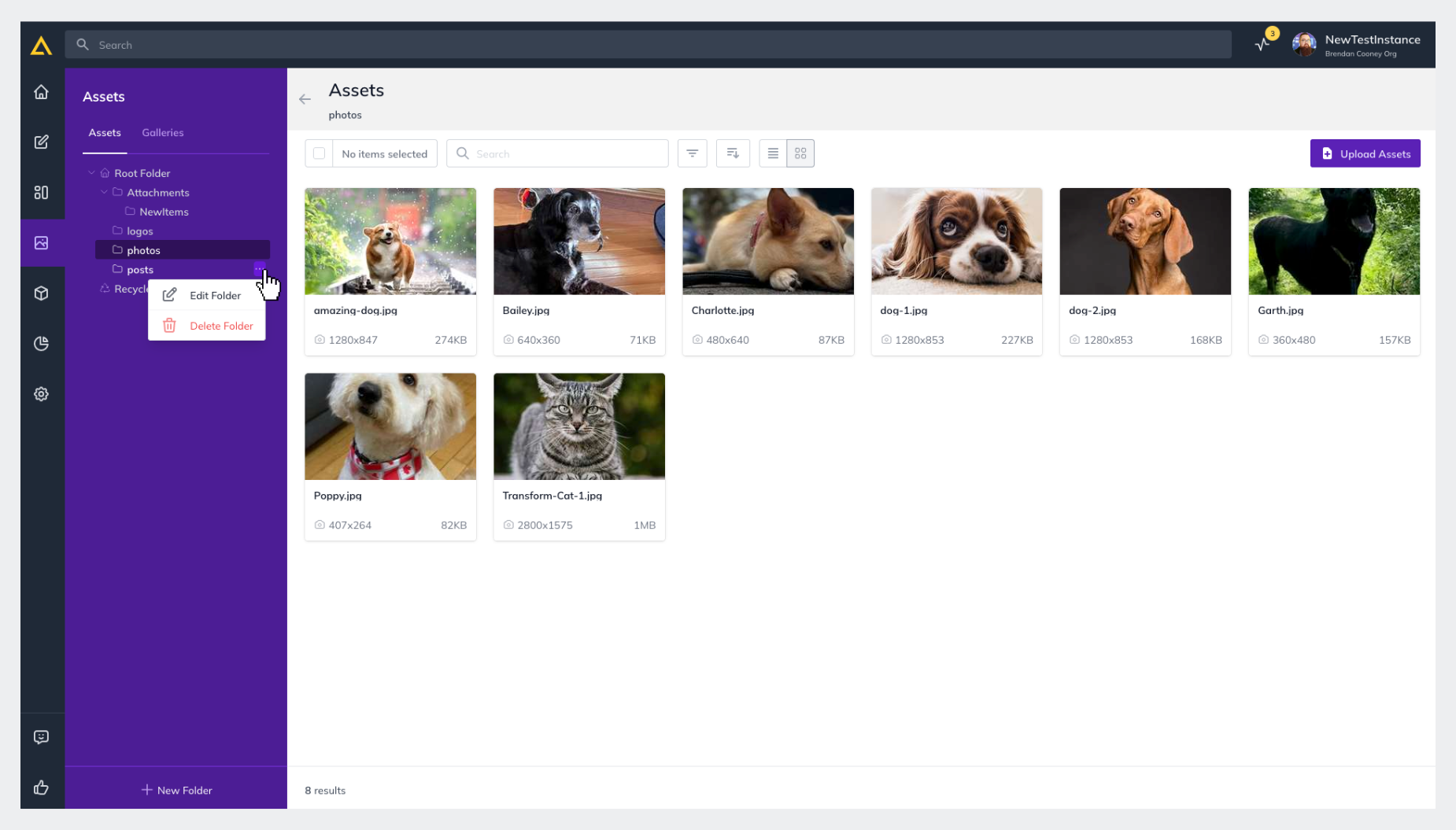
3. Click **Edit Folder **
4. In the pop-up window click the **Security Tab**
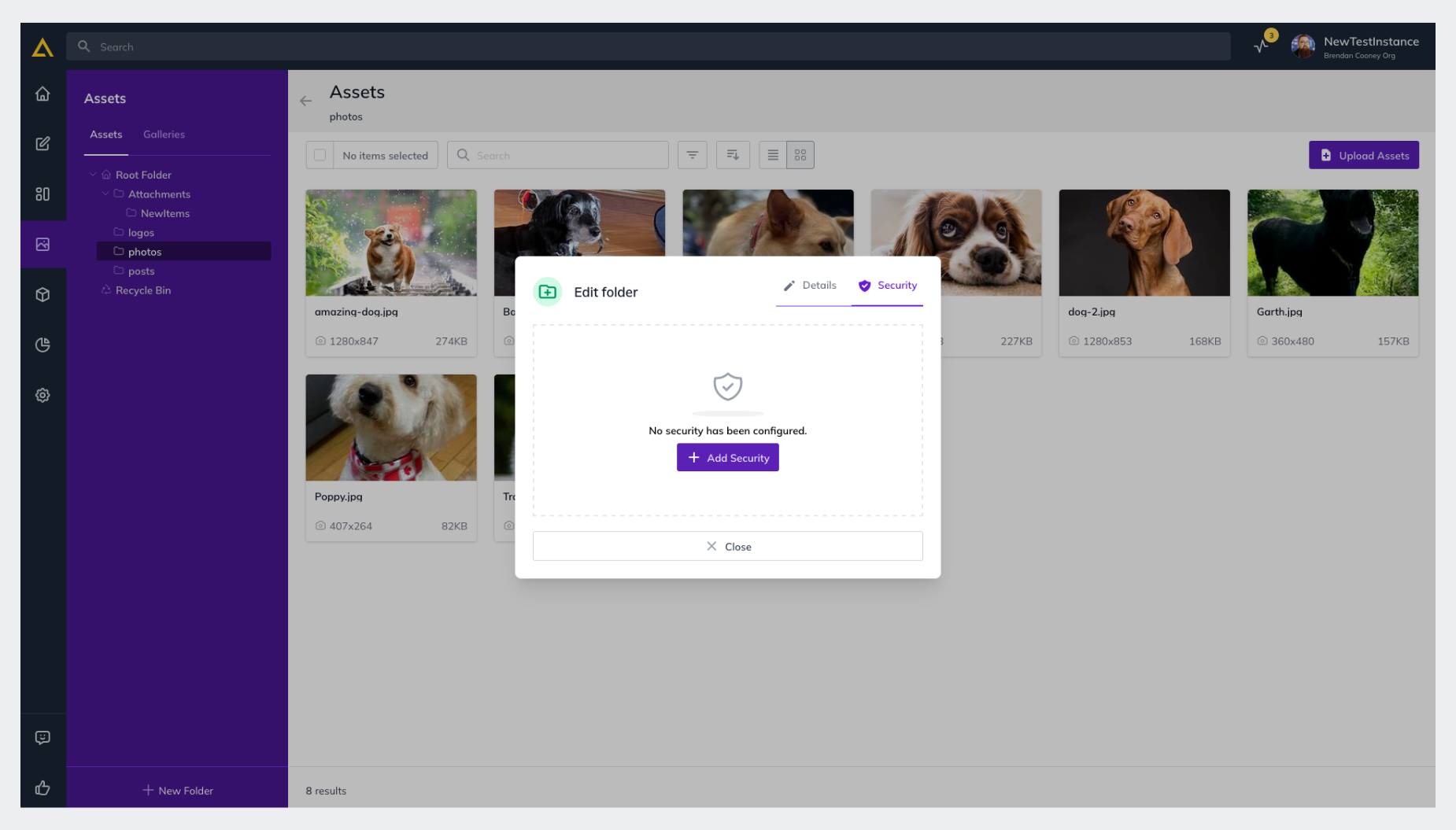
5. Click** + Add Security **
6. **Select the Users** you’d like to manage permissions for and click **Next**
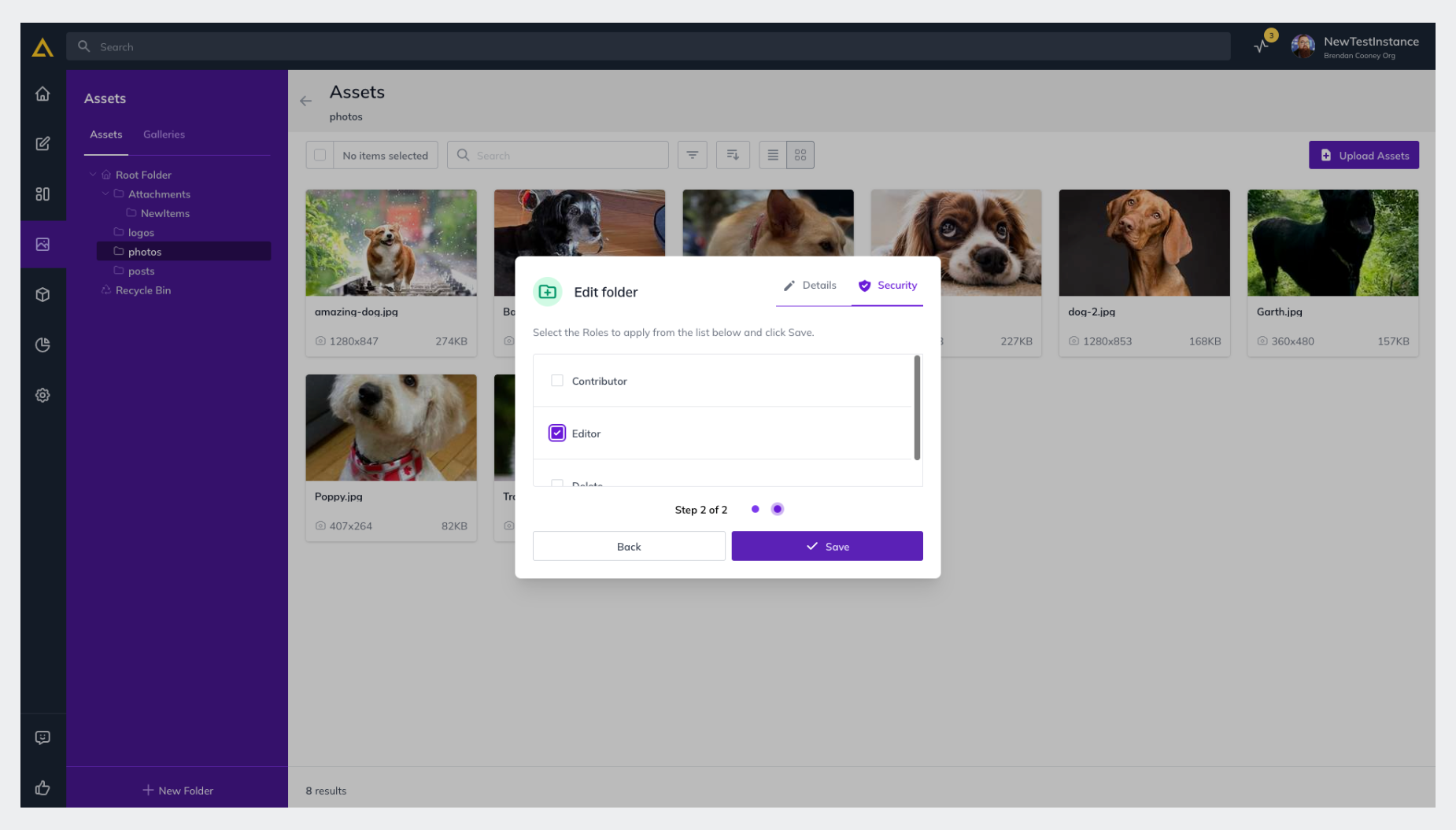
7. **Select the Roles** you’d like to assign them and click** Save **
## Deleting and Restoring Assets
See [Deleting and Restoring Content](https://agilitycms.com/docs/editors/deletions-and-restorations)
**Further Reading **
- [Editing Images](https://agilitycms.com/docs/editors/editing-images)
- [Transforming with Query Strings](https://agilitycms.com/docs/editors/transforming-images-using-query-strings)