# Deleting and Restoring Content
> Source: https://agilitycms.com/docs/editors/deletions-and-restorations
We’ve all accidentally deleted content before, this article covers what to do in case you or an Editor within your instance encounters any of the following scenarios:
## Assets
### Delete a single Asset
1. Navigate to the **Assets Section** in your Agility Instance
2. Find the asset, **Hover** it and click **Delete
**
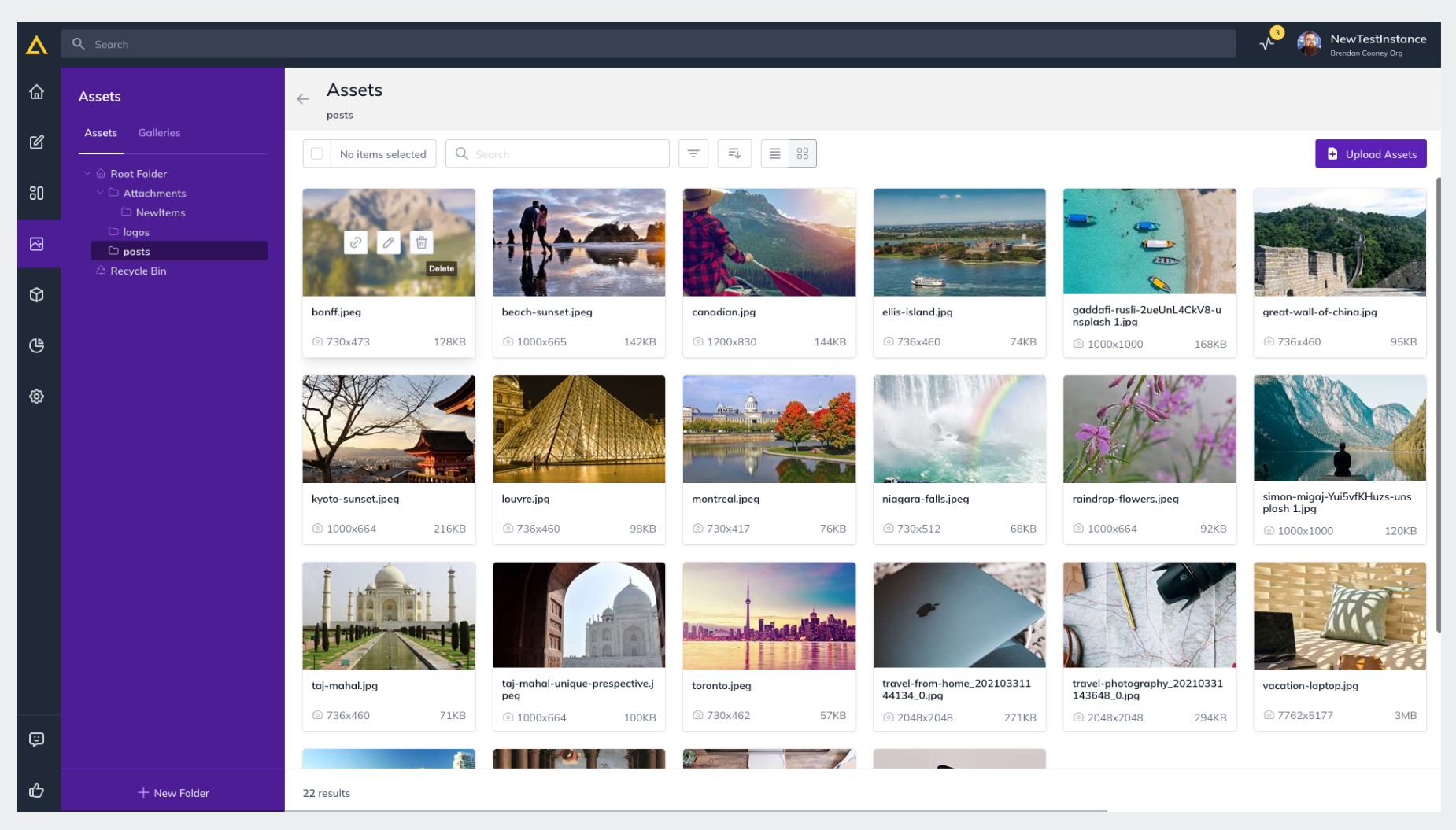
### Delete Multiple Assets
1. Navigate to the **Assets Section** in your Agility Instance
2. **Select the Assets **you’d like to Delete
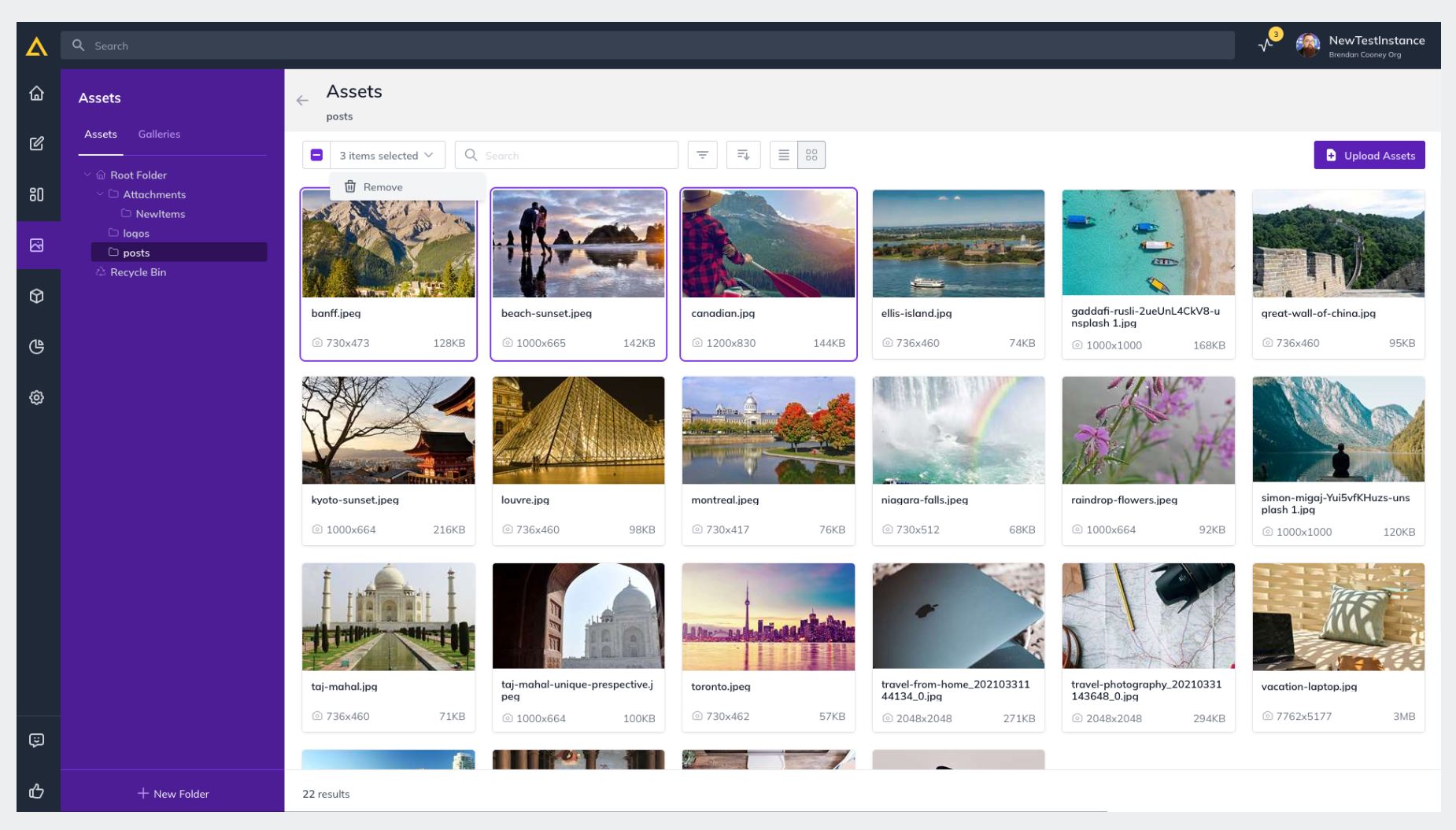
3. Click the **Selection Drop-drown** above the assets window
4. Click **Remove**
### Restore an Asset
1. Navigate to the **Assets Section** in your Agility Instance
2. Click **Recycle Bin** in your left-hand navigation menu to open a pop-up modal containing your recently deleted assets
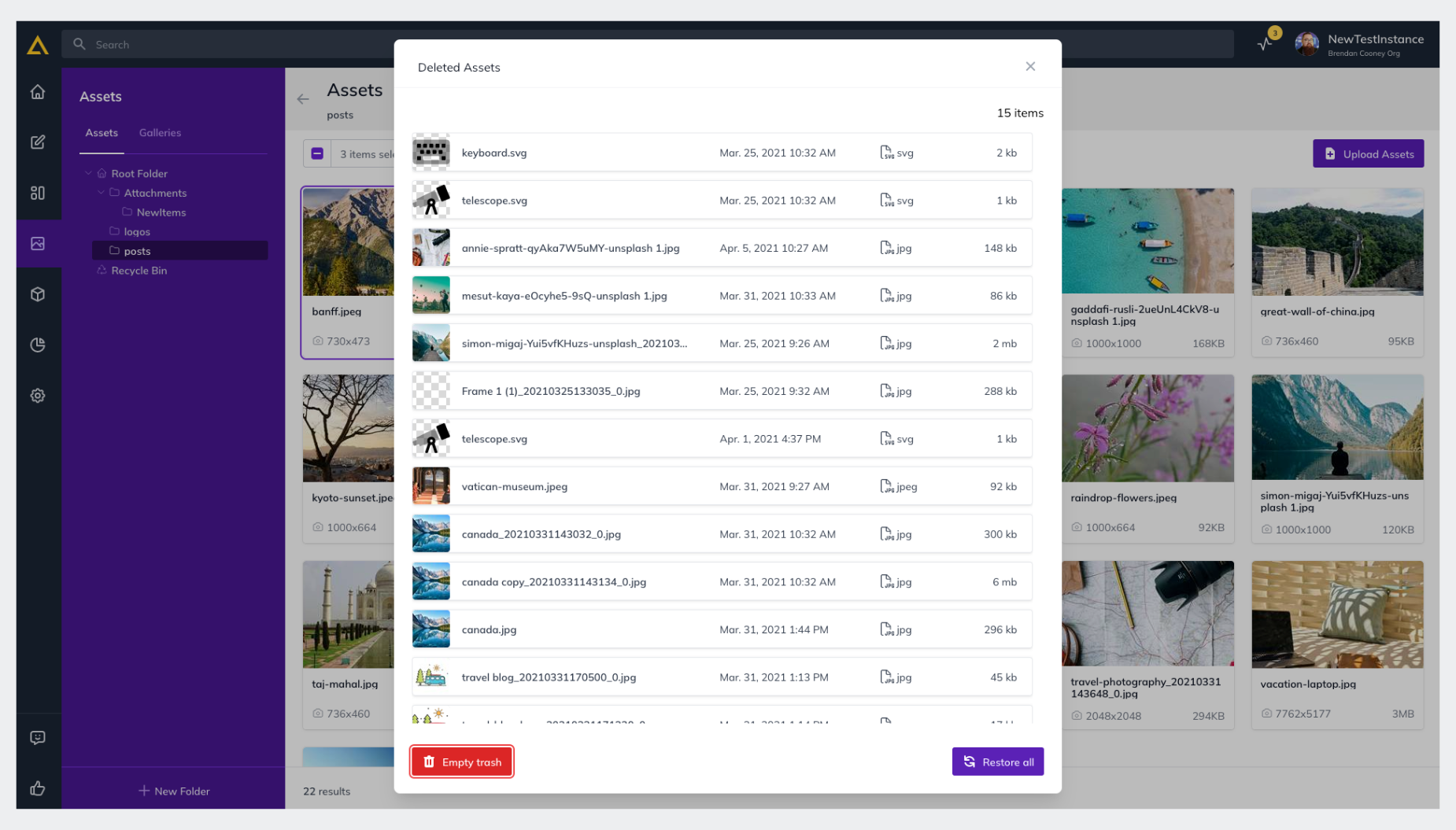
3. **Select the Assets** you’d like to Restore and click **Restore Selected **
### Permanently Delete an Asset
1. Navigate to the **Assets Section** in your Agility Instance
2. Click **Recycle Bin** in your left-hand navigation menu to open a pop-up modal containing your recently deleted assets
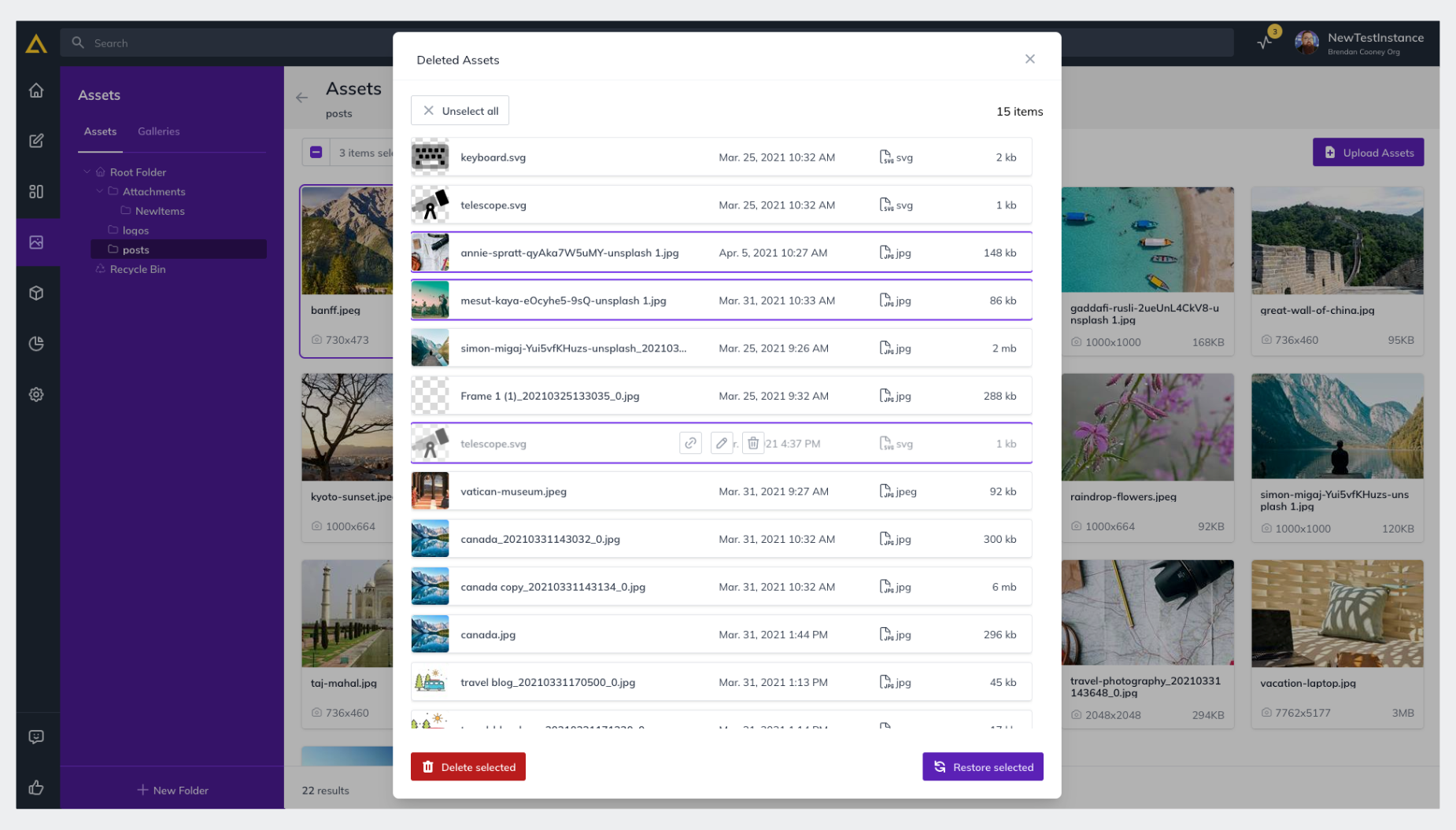
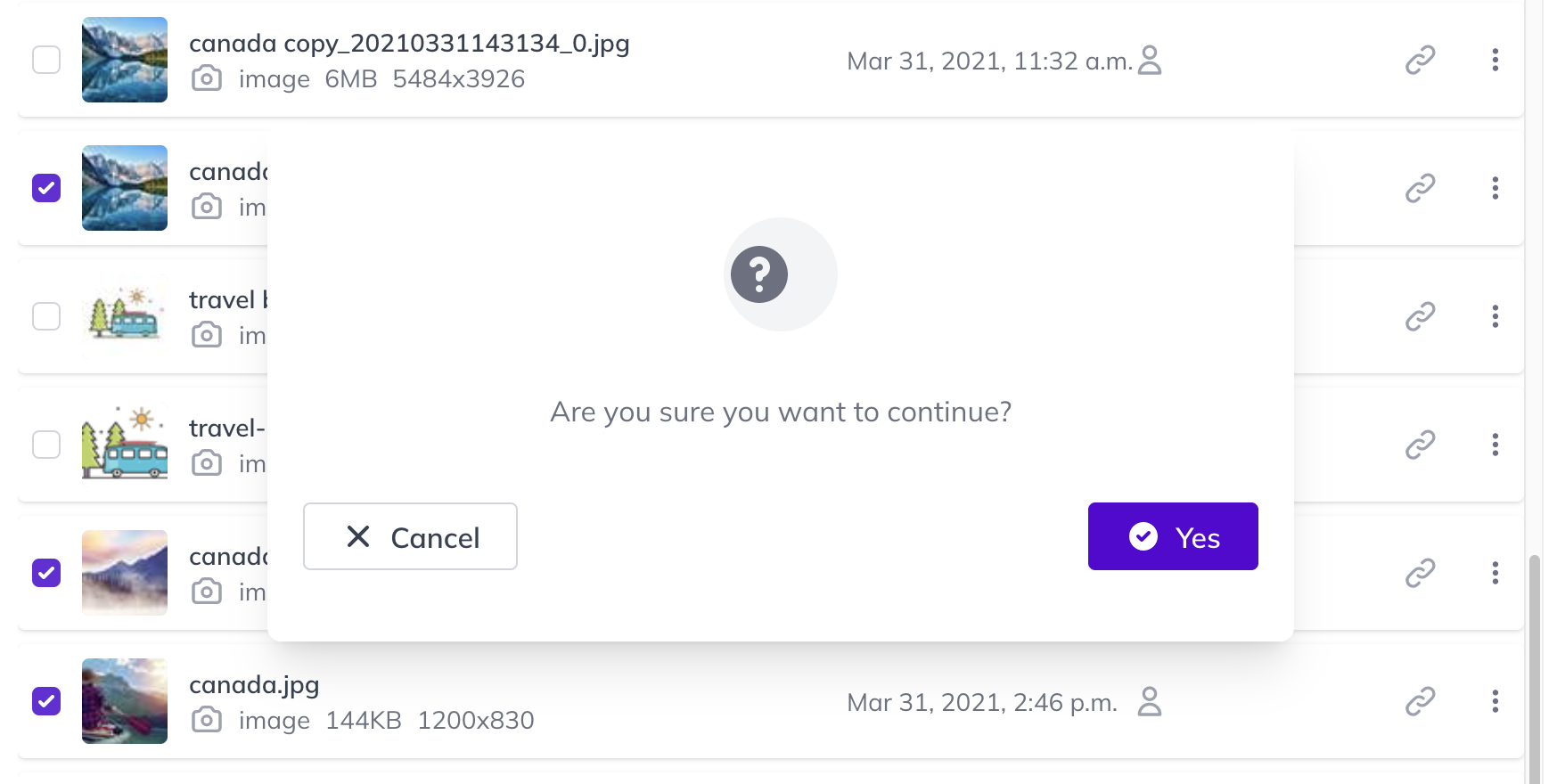
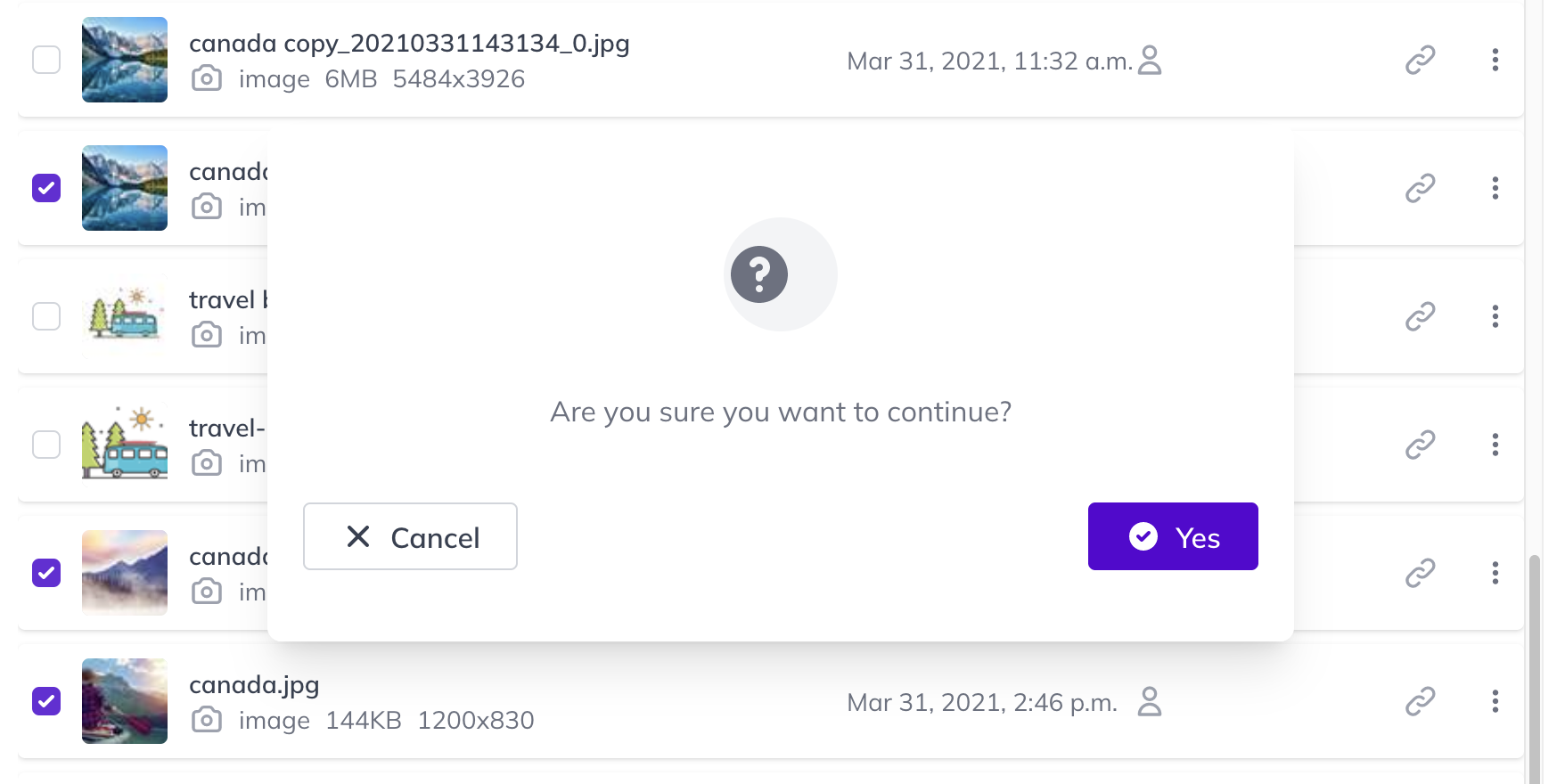
3. **Select the Assets** you’d like to Permanently Delete and click **Delete Selected **
## Pages
### Delete a Page
1. Navigate to the **Pages Section** in Agility
2. **Select the Page** you’d like to Delete
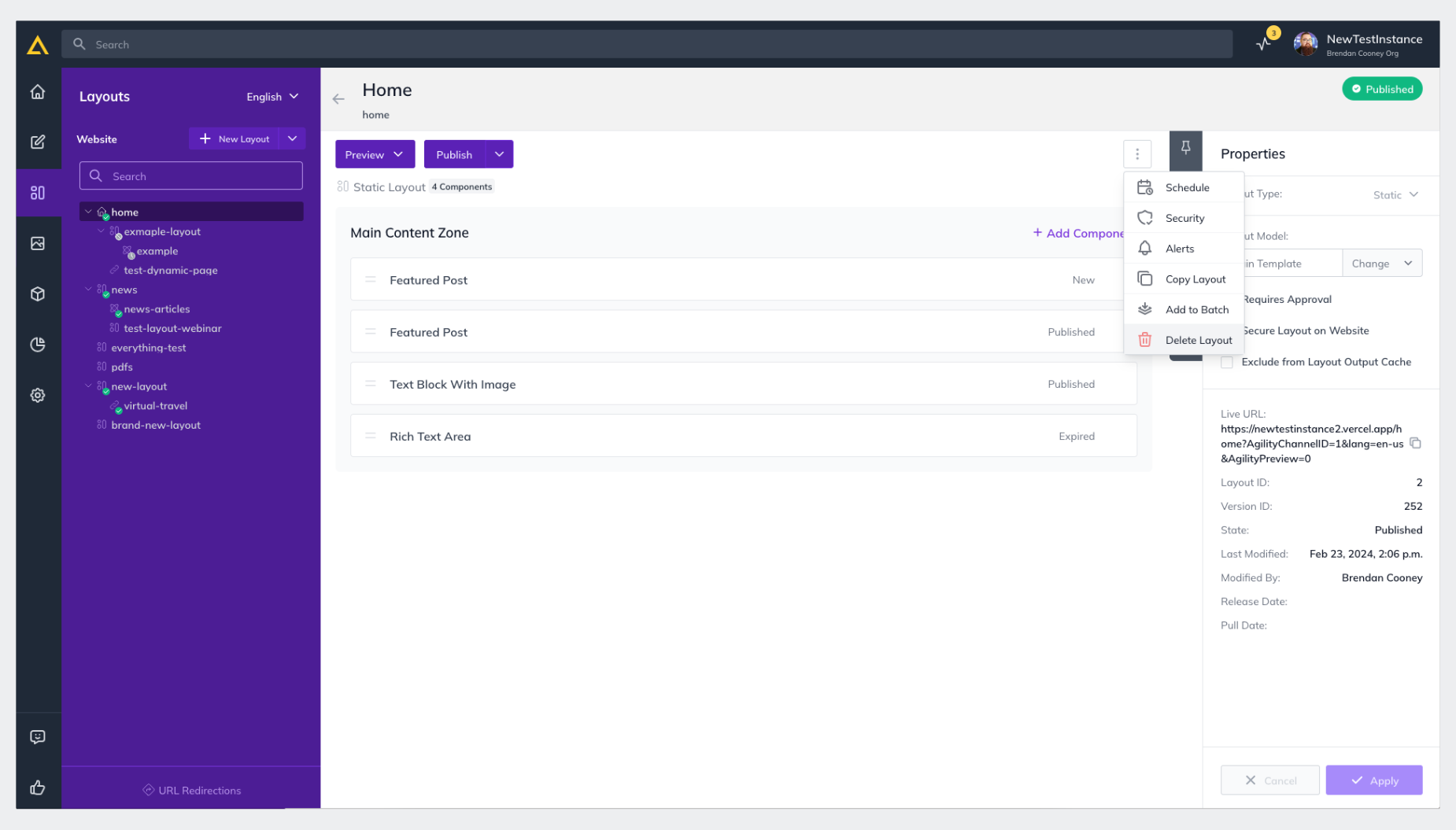
3. Click the** Menu Indicator** to the right of the Layout Title and click **Delete Page
**
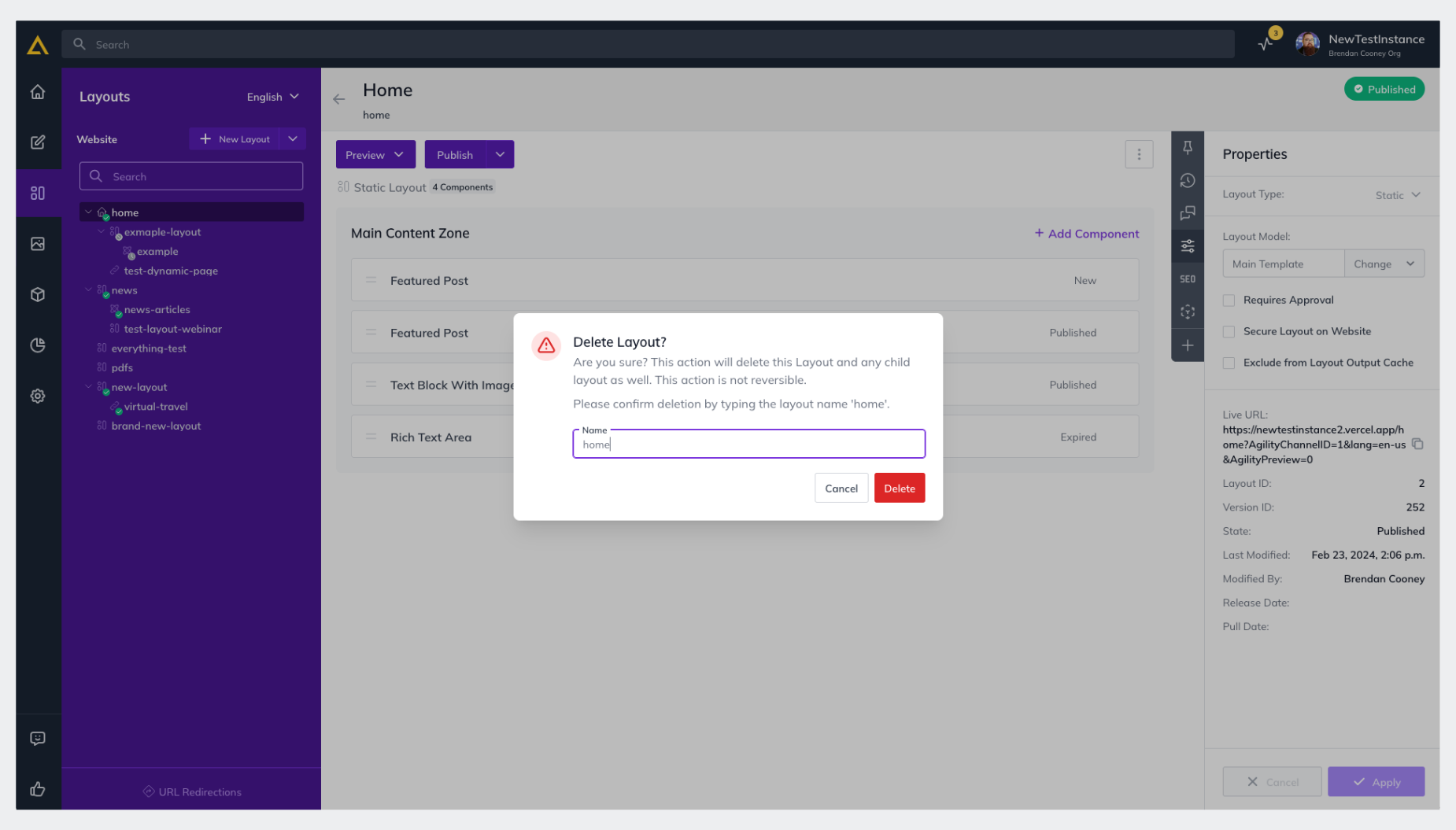
4. **Type the Name **of the Page in the confirmation window to **Confirm you’d like to Delete** the page and click **Delete**
5. Click **Are You Sure?** To double-confirm you’d like the layout Deleted.
> **Note** — Pages themselves that get deleted are not able to be recovered from the Agility Manager. If a page has been deleted from your site and you wish to recover it, please contact support@agilitycms.com.
> **I've deleted a Page, but I can still see it in my Sitemap with a red “!” symbol** — If you had deleted a Page, but are still seeing it in your Sitemap with a red symbol, it is because that Content is also initialized in another locale. The Page will need to be deleted in all of the locales it has been initialized in to be removed from the Sitemap.
## Content
### Delete Content
1. Navigate to the **Content Section** in Agility
2. Select the **Content List **where the content is stored
3. **Select the Content Item(s)** you’d like to delete
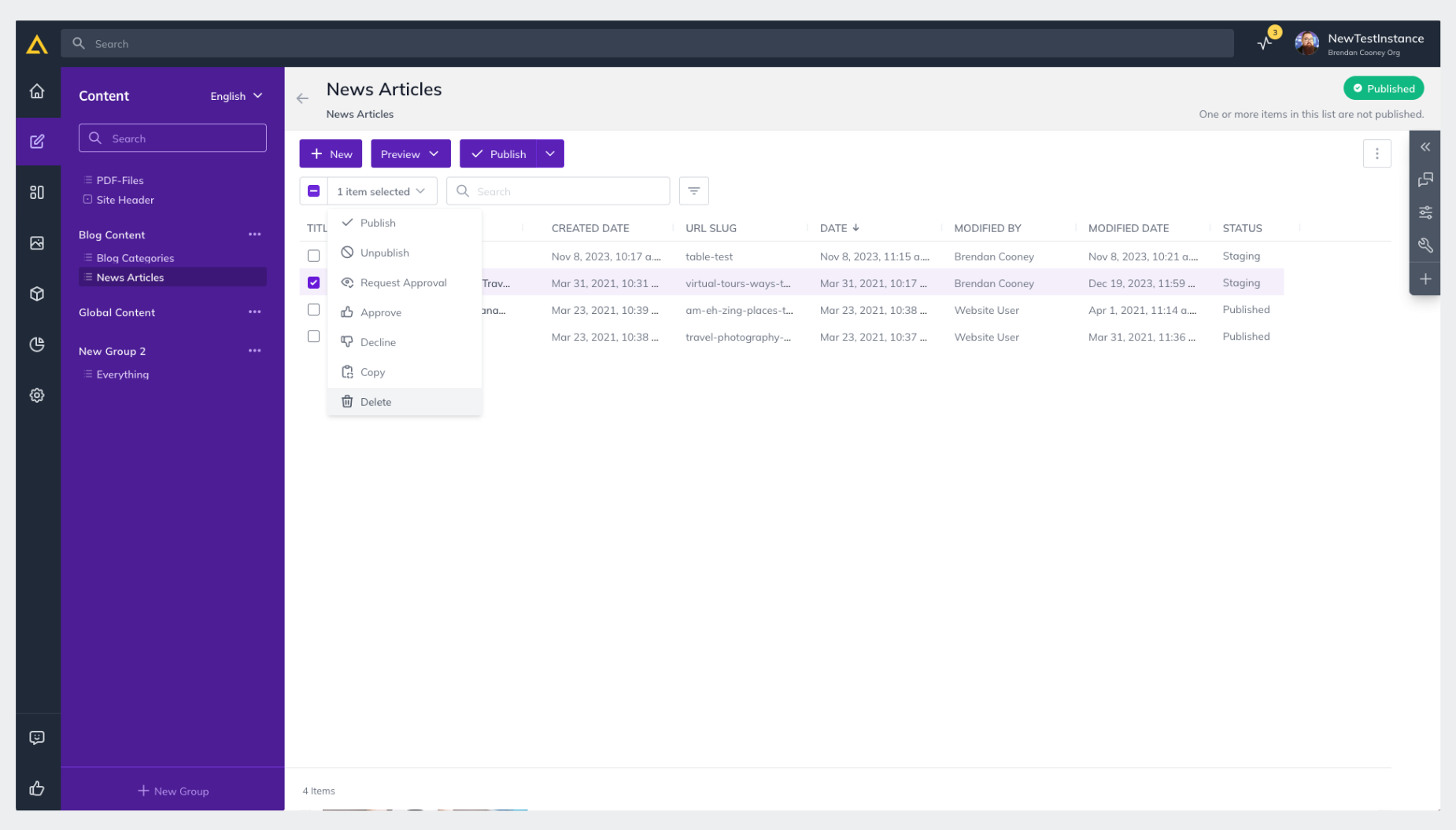
4. Click the **Selection Drop-down** at the top of page and click **Delete **
5. **Confirm you’d like to Delete** the content by clicking Delete again in the confirmation window
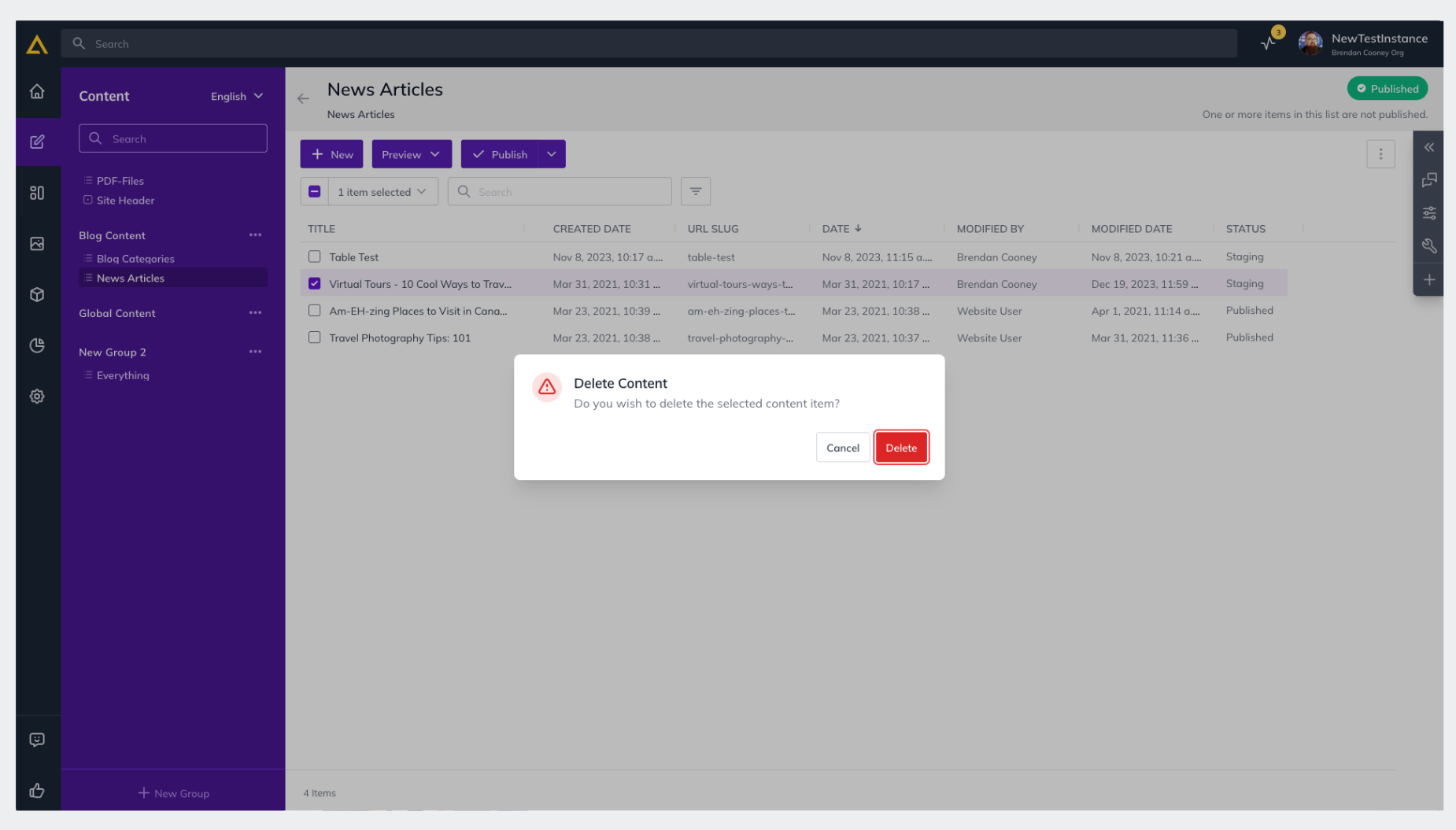
> **Important Note** — When deleting a Content Item that contains nested (child) content, Agility retains the nested content to make restoration as simple as possible. While these nested items will still count toward your total entries, you can reach out to your CSM to have them permanently removed.
### Restore Content
1. Navigate to the **Content Section** in Agility
2. Select the **Content List **where the content is stored
3. Click the **Filters **button
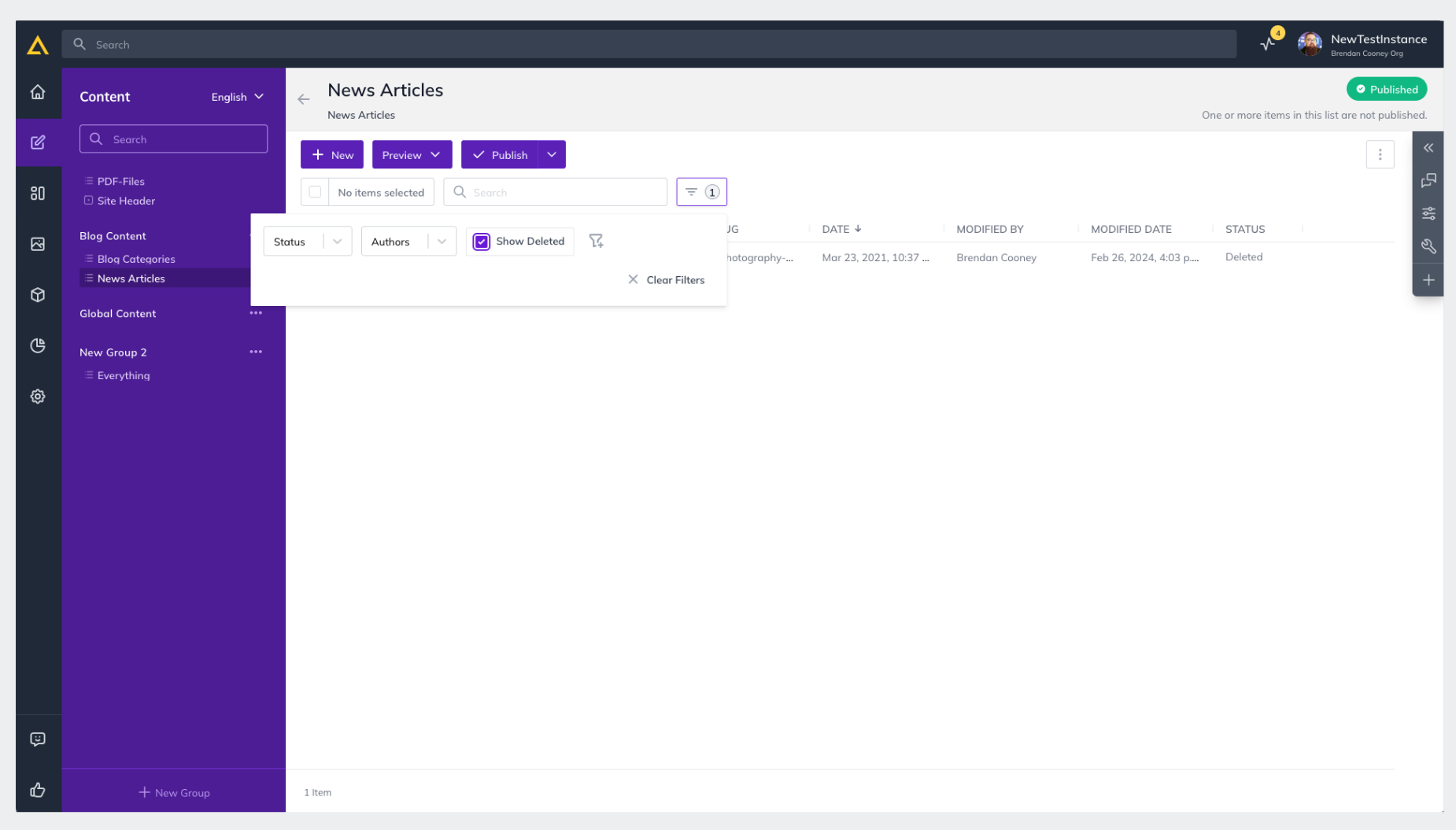
4. Click** Show Deleted Content **
5. **Select the Content Item(s) **you’d like to restore
6. Click the **Selection Drop-down** at the top of the page and click** Restore**
7. **Confirm you’d like to Restore** the content by clicking Restore again in the confirmation window